SMS Installation Guide
SMS INSTALLATION GUIDE
BY

This manual is to be followed to install the components of the SMS functionality within the Everest System. This is primarily used by Developers.
NB! Before commencing Port 9911 must be opened on the Firewall both outgoing and incoming TCP.
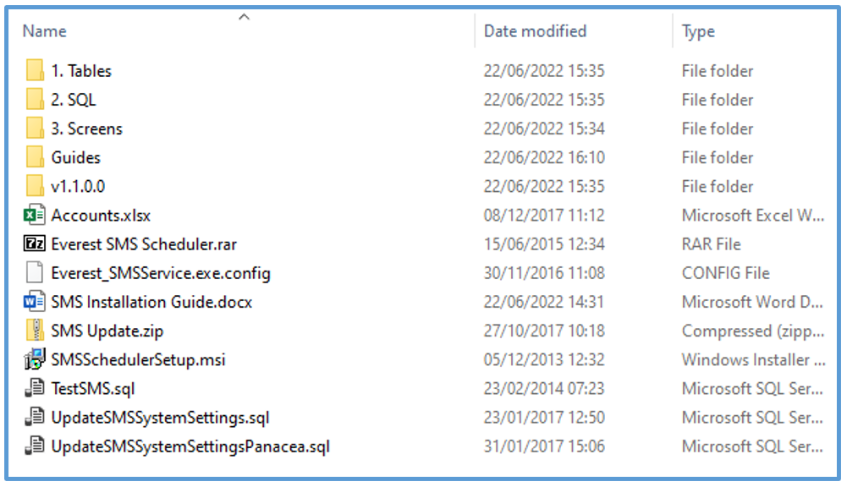
Files and Folders
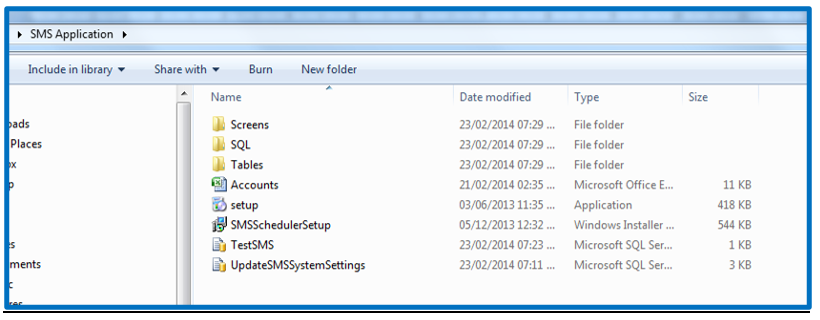
This folder can be found on Dropbox → EBSphere → SMS Service:
Installation Process
These steps must be followed in sequence:

Tables
In the Tables Folder, run each of the following in SQL Management Studio:

Stored Procedures
In the SQL Folder, run each of the following in SQL Management Studio:

Screens
In the Screens Folder, run each of the following in SQL Management Studio:

Install the SMS Service and Scheduler
First you need to name the Service. Once done, in the V1.1.0.0 folder, run the setup.exe file:
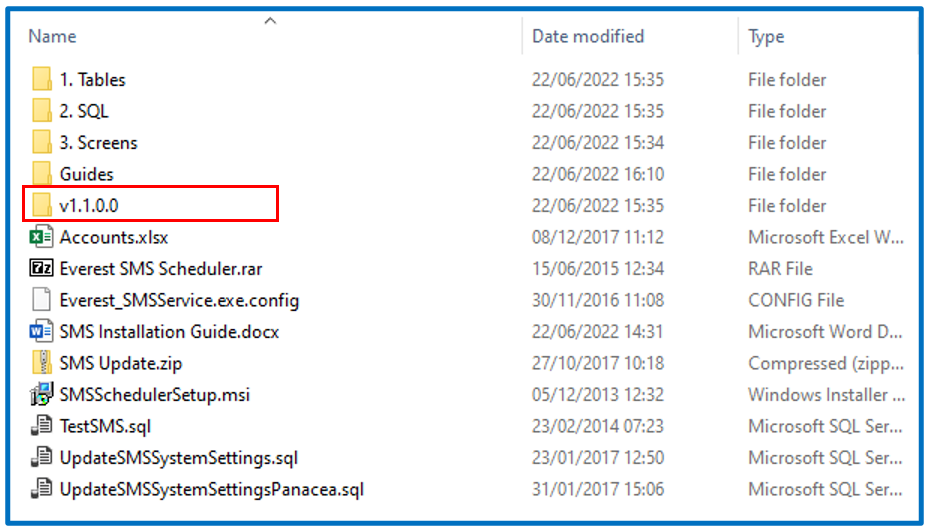

This will automatically start the Everest SMS Scheduler Setup Wizard.
Follow the steps as per below:


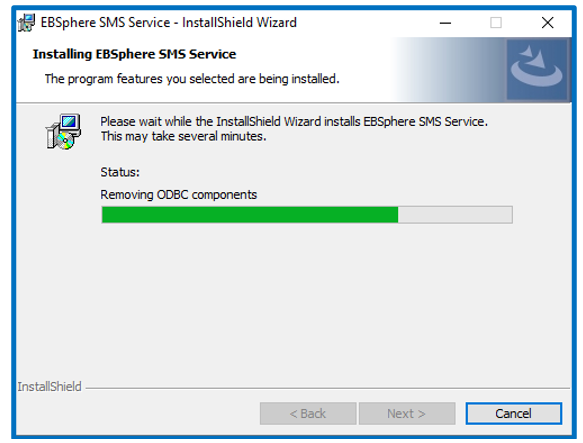
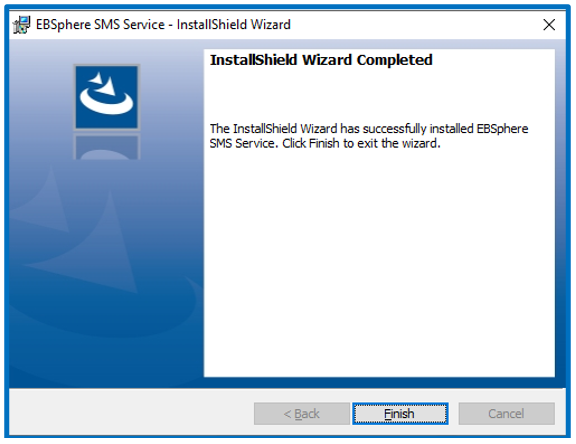
Check for critical updates to the .Net Framework:
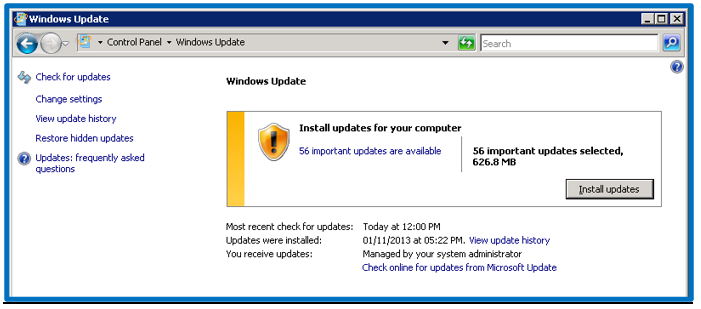
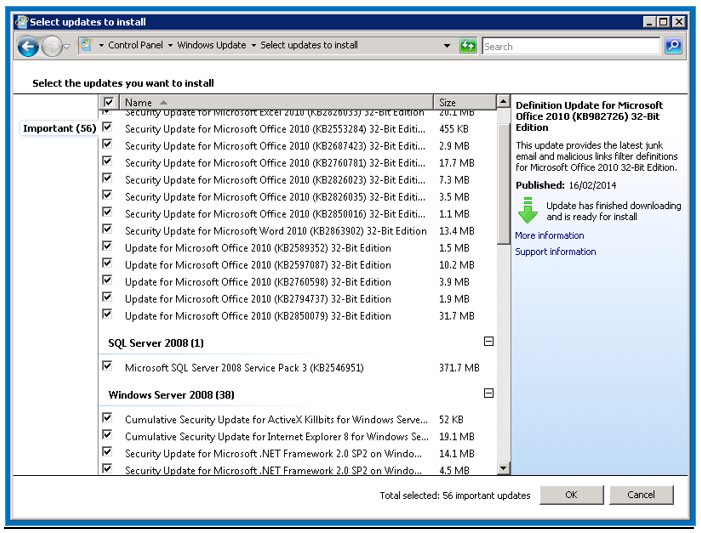
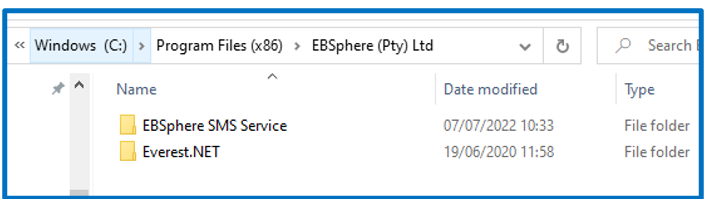
Check to see if this is now in the program files – Local Disk (C) → Program Files (x86) → EBSPhere (Pty) Ltd:
Update the SMS Service application
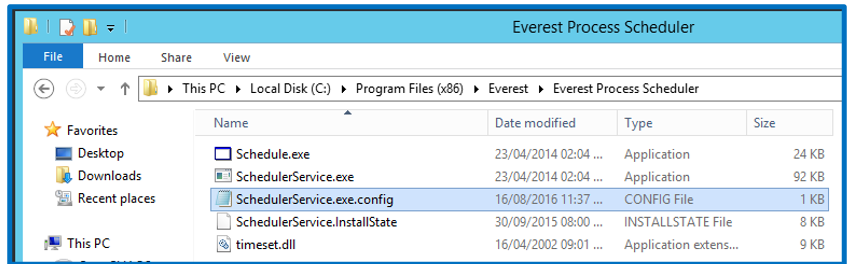
Change the fields below to your clients Service Name, Server name, Database, User ID and Password:

Setup the SMS configuration on Everest Database
Open the “UpdateSMSSystemSetting” stored procedure in SQL management Studio.
Update the variables in the procedure - the account information for Username and Password can be found on the “Accounts” excel spreadsheet in the directory.

Start the SMS Service
Go to the Services on the server:
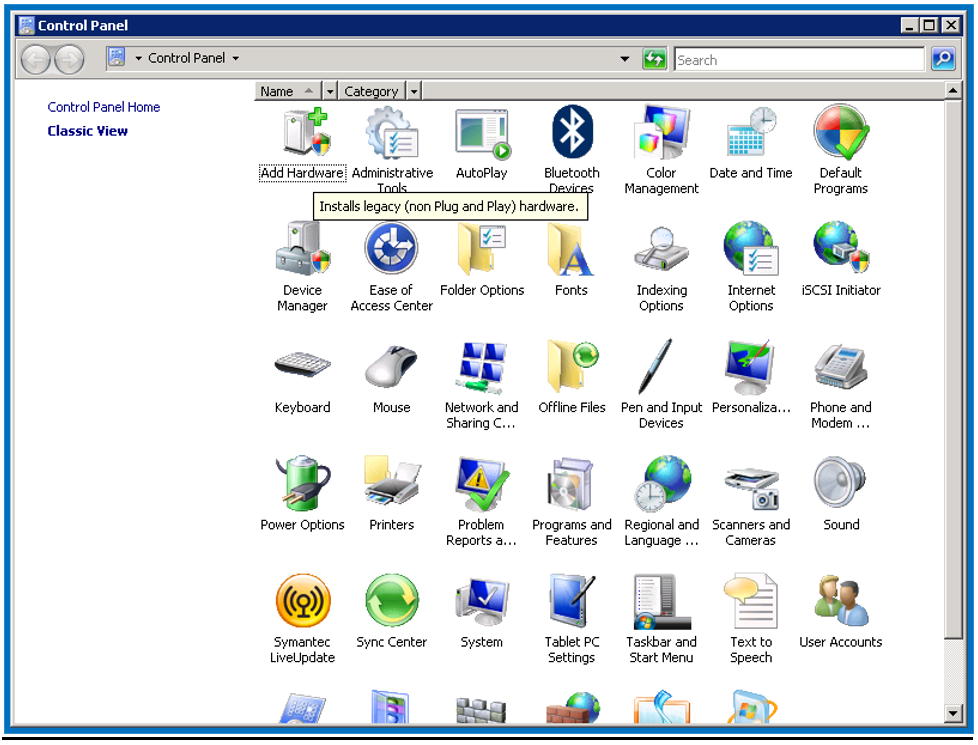
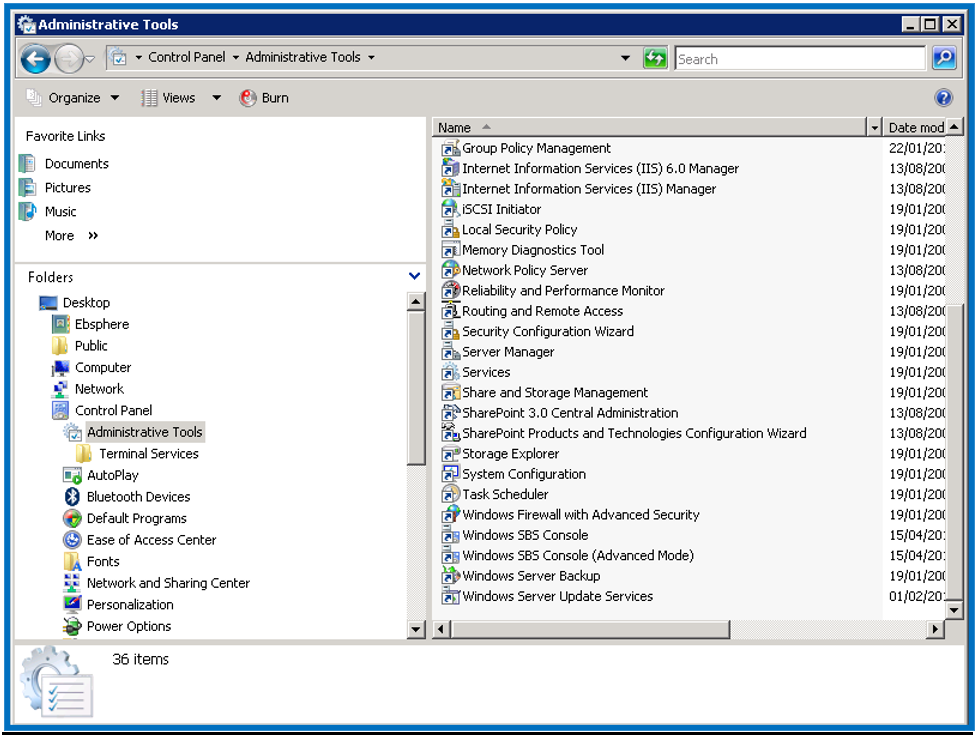
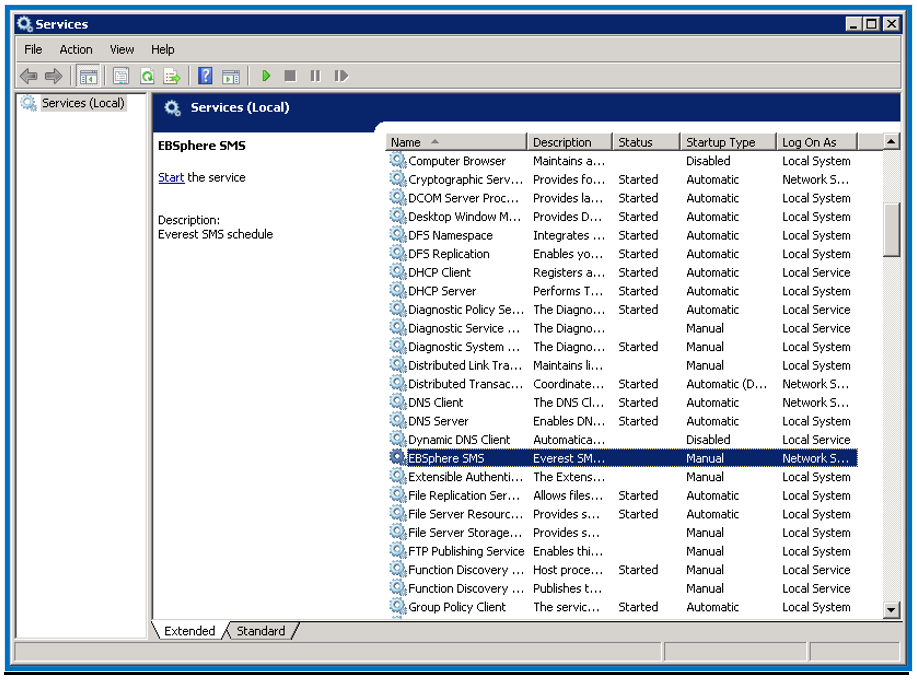
Right click and start the service:
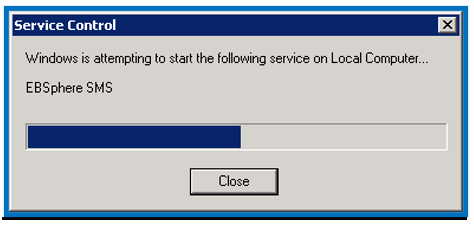
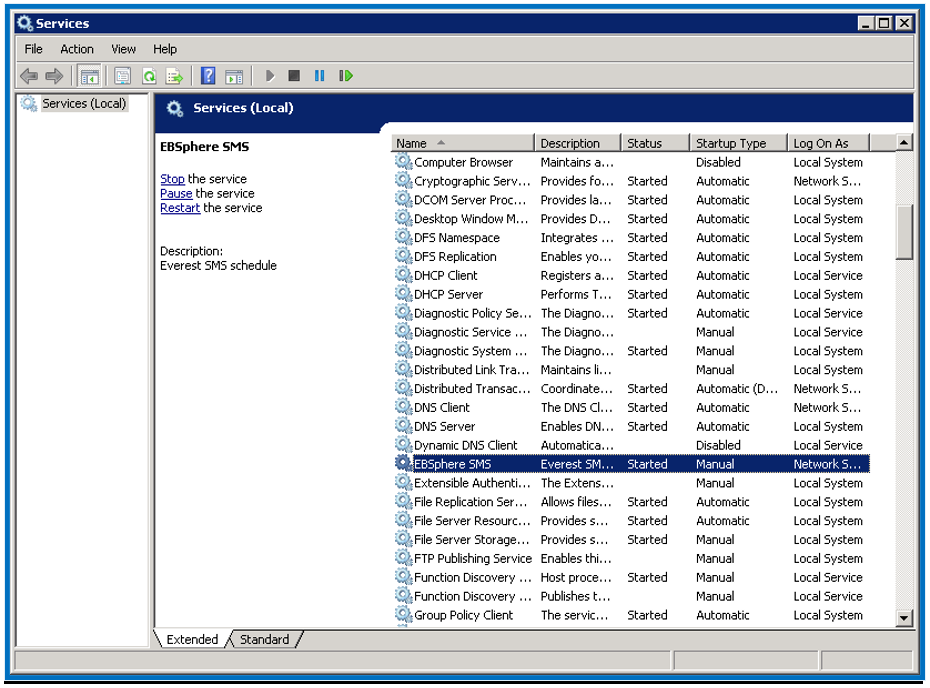
Test the SMS functionality
Open the TestSMS procedure, in Dropbox → EBSphere → SMS Service:
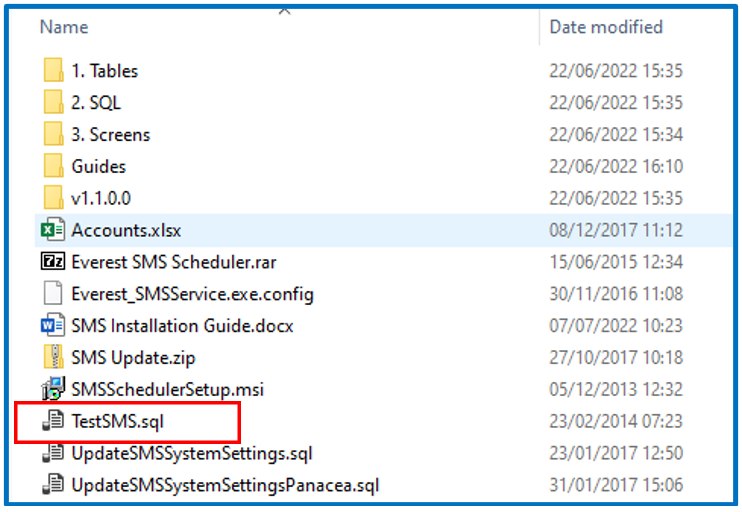
Change the cellphone number and run the procedure:

This will be processed, and you should receive an SMS. If not check the table “prgServiceLogs” for any errors.
Disclaimer and Copyright
DISCLAIMER
Please note, whilst care is taken to illustrate numerous scenarios, it is impossible to detail all instances and therefore this document should merely serve as a guide for the purposes of demonstrating system functionality and conducting employee training.
In accordance with the above paragraph, this training manual is published and distributed on the basis that EBSphere (Pty) Ltd is not responsible/accountable for any actions taken by users of information contained in this training manual nor for any error in or omission from this manual.
EBSphere (Pty) Ltd does not accept any responsibility whatsoever for a misrepresentation performed by any person in respect of claims, losses or damage or any other matter, either direct or consequential arising out of or in relation to the use and reliance, whether wholly or partially, upon any information contained or products referred to in this manual.
Further, the contents of this training manual are subject to change without any notice and further highlight the need for this training manual to serve only as a guide.
COPYRIGHT
This documentation and the software described in it is the exclusive property of EBSphere (Pty) Ltd. This manual or the software may not be copied in whole or part, without the express written consent of EBSphere (Pty) Ltd. Under the law, copying includes translating into another language or format.
EBSphere (Pty) Limited
P.O. Box 785803
Sandton
2146