Loading a Repeatable AVC
LOADING A REPEATABLE AVC
BY

Introduction
A member can elect to contribute an additional amount to the Fund in the form of an Additional Voluntary Contribution (AVC).
In most cases these amounts are repeated each month, and form part of the monthly contribution update.
Everest facilitates these amounts via repeatable single premiums and can be loaded on Everest via an import file or directly on the single premium screen.
Single Premium Types
Whether you add the AVC via import or on the single premium screen it is imperative that the correct single premium type is selected.
You can view the available single premium types by going to Administration → Static Settings → Single Premium Types:
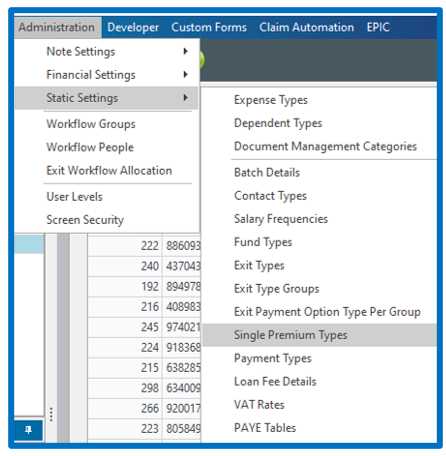
The screen that opens reflects the currently available single premium types. Should an appropriate single premium not be available, please ask your System Administrator to add it for you:

In this example above, you will note that there are multiple AVC types. Only the AVC Types that have a tick in the Repeat column work as a repeatable AVC. For example, “AVC Conts (Taxed)” does not have a tick in the “Repeat” box and would therefore not be included in a contribution run or repeat each month. Also take note of the Non-Taxable box as this will determine if the member is taxed on this amount at exit.
If you are doing an import, you can copy the name of the correct AVC type from this screen. If you are adding the AVC on the single premium screen, you can select from the available dropdown, but do take note of which AVC type would work by first checking on the Single Premium Types screen.
Adding an AVC via the Single Premium Screen
While on the client, search for the member you wish to add a repeatable AVC for.
Select the “single” button:

Any single premiums, for example take on values, will appear on this screen that opens:

Double click on the “Click here to add a new row” line:

The screen that opens allows you to populate the relevant fields:

Effective Date: The month end date from when the AVC must commence
Accounting Date: The month end date from when the AVC must commence
Type: Select from the available drop down – note the (Repeat) behind some types – this indicates it is a repeatable single premium type.
Cap Amount: The value of the AVC
Description: A text field where you can indicate what the AVC is for
All other fields are unnecessary for repeatable AVC’s.
Populate these fields and then select “Update”.
The Repeatable AVC will reflect in Blue:

NB!! The AVC will repeat until you add a termination date in the “Term’d” field. Should the amount change, terminate the old row and add a new row from the date of the change.
Importing an AVC
Prepare the “Member Single Premium Import” template:

Effective Date: The month end date from when the AVC must commence
Accounting Date: The month end date from when the AVC must commence
Client: The client ID – located behind the client name on Everest
System No: The member’s system number
Description: A text field where you can indicate what the AVC is for
Premium Type: Copy the exact name of the AVC type from the Single Premium Types screen and paste to the spreadsheet
Amount: The value of the AVC
All other fields are unnecessary for repeatable AVC’s.
Save the file for later use.
While on the client go to Batches → Batch Management:

Search for the “Import Member Single Premiums” batch and select “New Batch”:

Double click on the edit hyperlink next to the batch:

A batch editor screen will open. Browse to pick up the file you created earlier:

Select “Save” and “Execute”.
Two reports will populate.
The first report lists the columns that were found in the import file, lists any headings that were mandatory and NOT found in the import file, and also lists all available headings:

The second report confirms a successful import:

You will note that the report says, “Total of 0 records were imported”. Do not be concerned with this as this merely indicates that no accounts entries were written up in this process. Accounts entries for the AVC will only populate when the contribution run is processed.
Go to the member record and click on the “Single” tab:

You will note that the new AVC has been added and should a repeatable AVC with the same single premium type be imported, Everest will automatically terminate the old line.
Disclaimer and Copyright
DISCLAIMER
Please note, whilst care is taken to illustrate numerous scenarios, it is impossible to detail all instances and therefore this document should merely serve as a guide for the purposes of demonstrating system functionality and conducting employee training.
In accordance with the above paragraph, this training manual is published and distributed on the basis that EBSphere (Pty) Ltd is not responsible/accountable for any actions taken by users of information contained in this training manual nor for any error in or omission from this manual.
EBSphere (Pty) Ltd does not accept any responsibility whatsoever for a misrepresentation performed by any person in respect of claims, losses or damage or any other matter, either direct or consequential arising out of or in relation to the use and reliance, whether wholly or partially, upon any information contained or products referred to in this manual.
Further, the contents of this training manual are subject to change without any notice and further highlight the need for this training manual to serve only as a guide.
COPYRIGHT
This documentation and the software described in it is the exclusive property of EBSphere (Pty) Ltd. This manual or the software may not be copied in whole or part, without the express written consent of EBSphere (Pty) Ltd. Under the law, copying includes translating into another language or format.
EBSphere (Pty) Limited
P.O. Box 785803
Sandton
2146