Client Benefits - General Guidelines
CLIENT BENEFITS - GENERAL GUIDELINES
BY

Setting up Client Benefits
Client: Select the relevant client.
Client Menu: Select “Client Benefits”.
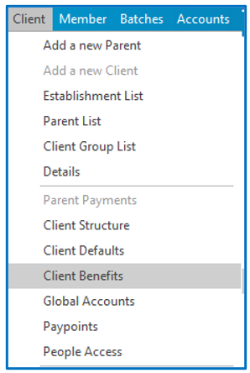
If Client Benefits have previously been set up, a list of these will appear.

Adding New Benefits
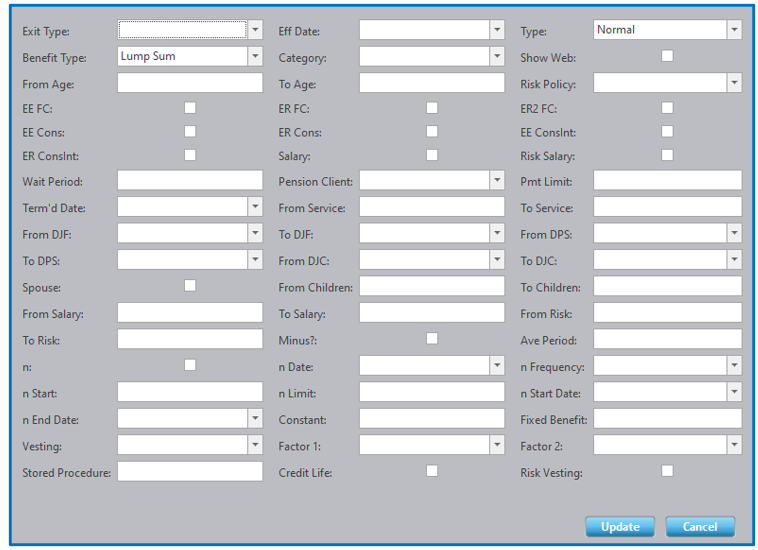
To add Client Benefits, click on the row to create a new entry. Complete all pertinent information.
Take special note of the following: Exit Type: Select the Exit Type from the drop-down option. Should an exit type you require not be available, please ask your System Administrator to add the benefit type via Administration, Static Settings, Exit Types (refer to the “Exit Types” manual). Complete all Exit Types on a new line. Effective Date: The Effective Date relates to the actual date from when the benefit is applicable. Type: Select the benefit Type i.e., Normal, Minimum or Maximum from the drop-down option. A Normal Benefit Type must be reflected. Minimum and maximum benefits are not mandatory. If utilised, each benefit type should be added on a new line. The three types of benefits are calculated independently of each other. The normal benefit will be subject to the minimum and maximum benefits calculated. Benefit Type: Is there a Pension Payable? If so, select Pension from the drop-down option. If this benefit is to be paid as a lumpsum, select this option. In most cases all benefits are paid as a Lump Sum. Category: Should this benefit be category specific, select the relevant category from the drop-down option. Category specific exit types will appear in blue. If a category is loaded for a benefit type, lines must then be entered for the same Exit Type to cater for all other categories. |
This field does not need to be completed for benefits that are not category specific (i.e., the same benefit will apply to all categories). From Age: Does this benefit apply to members older than a certain age? To Age: Does this benefit apply to members younger than a certain age? EE FC?: Is the Fund benefit made up of the Employee Fund Credit? If so, tick this block. ER FC?: Is the Fund benefit made up of the Employer Fund Credit? If so, tick this block. ER2 FC?: Is the Fund benefit made up of a Special Contribution (as defined under the Single Premium Types)? If so, tick this block.
In this example, the benefit is merely a Full Fund Credit Benefit (as per the following screenshot).
EE Cons (Mostly used for Defined Benefit Schemes): Is the Fund benefit made up of the Employee Accumulated Contributions without interest? If so, tick this block. ER Cons (Mostly used for Defined Benefit Schemes): Is the Fund benefit made up of the Employer Accumulated Contributions without interest? EEConsInt (Mostly used for Defined Benefit Schemes): Is the Fund benefit made up of the Employee Accumulated Contribution including interest? ERConsInt (Mostly used for Defined Benefit Schemes): Is the Fund benefit made up of the Employer Accumulated Contributions including interest? Salary (Mostly used for Defined Benefit Schemes): Tick “Yes” to include the member’s Annual Salary as part of the benefit. Risk Salary (Mostly used for Defined Benefit Schemes): Tick “Yes” to include the member’s Annual Risk Salary as part of the benefit. Wait Period: Is there a Waiting Period to be applied to this Exit Type? If so, enter the waiting period, in months. Pmt Limit: Is there a Payment Limit? If so, enter the number of benefit payments that will be made. This would only apply to “pension” type benefits. Term’d Date: Has this Exit Type been terminated? Ensure that the terminated date is completed. Once terminated, the line item will be reflected in red. It is imperative to maintain a history of all information. If the Exit Benefit is changed, a new line is to be entered with the new Effective Date and new corresponding details. Information must not be overridden. From Service: Does this benefit apply to members with a minimum amount of service? To Service: Does this benefit apply to members with a maximum amount of service? From DJF and To DJF: Does this benefit apply to members with Date Joined Fund between these two dates? |


This field does not need to be completed for benefits that are not category specific.
From DPS and To DPS:
Does this benefit apply to members with Date of Pensionable Service between these two dates?
From DJC and To DJC:
Does this benefit apply to members with Date of Joining the Company between these two dates?
Spouse:
Is this benefit dependent on there being a spouse?
From Children and To Children:
Is this benefit dependent on having a certain number of children, as specified?
From Salary and To Salary:
Does this member need to have a salary between these two limits to qualify for this benefit?
From Risk and To Risk:
Does this member need to have a Risk Salary between these two limits to qualify for this benefit?
Minus?:
Should this portion of the benefit be subtracted from the Full Benefit calculated? If so, tick the block.
Ave Period:
Enter the number of years over which the members previously selected salary will be averaged, if required.
n (Mostly used for Defined Benefit Schemes):
Tick “Yes” if the benefit calculated must be multiplied by the member’s years of service.
n date (Mostly used for Defined Benefit Schemes):
Select the date from which the above service must be calculated.
n frequency (Mostly used for Defined Benefit Schemes):
Select a rounding type for the previously calculated service. If for example “weekly” is selected, then the calculated service will be rounded to the nearest number of weeks.
n Start (Mostly used for Defined Benefit Schemes):
Enter a service amount here should the member require a minimum amount of service to qualify for this benefit.
n Limit (Mostly used for Defined Benefit Schemes):
Enter a service amount here should the member require a maximum amount of service to qualify for this
benefit.
n Start Date (Mostly used for Defined Benefit Schemes):
Enter the relevant date from which service would be calculated from.
n End Date (Mostly used for Defined Benefit Schemes):
Enter the relevant date from which service would be calculated to.
Constant:
Enter a constant amount by which the benefit line will be multiplied.
Fixed Benefit:
Enter the fixed benefit amount here.
Vesting:
Select a vesting table from the drop-down option if one applies to the benefit. New vesting tables can be created – refer to the “Vesting Tables” manual.
Factor 1:
Select a factor table, from the drop-down option, if the benefit is to be multiplied by a pre-specified factor.
New factor tables can be created – refer to the “Factor Tables” manual.
Factor 2:
Select a factor table, from the drop-down option, if the benefit is to be multiplied by a pre-specified factor.
New factor tables can be created – refer to the “Factor Tables” manual.
Risk Policy:
For Exit Types e.g., death and disability benefits, where the benefit is made up of an insured amount as well as the Fund Benefit, ensure that the Risk Policy is selected from the drop-down option.
Should the Risk Policy not be available as a drop-down option, ensure that the Risk Policy has been set up at a Parent Level and then linked to the relevant Client.
Stored Procedure:
Enter a stored procedure name if the benefit amount is to be calculated by a stored procedure. This can be used for calculations that cannot be accommodated via a combination of the available fields – please speak to your System Administrator if you require this functionality.
NOTE:
Numerous Exit Types can be input here and must be entered on a new line. Benefits entered on various lines are summed to get the member’s total benefit. Changes may be required to the setup of the Exit Types according to your benefit circumstances.
Disclaimer and Copyright
DISCLAIMER
Please note, whilst care is taken to illustrate numerous scenarios, it is impossible to detail all instances and therefore this document should merely serve as a guide for the purposes of demonstrating system functionality and conducting employee training.
In accordance with the above paragraph, this training manual is published and distributed on the basis that EBSphere (Pty) Ltd is not responsible/accountable for any actions taken by users of information contained in this training manual nor for any error in or omission from this manual.
EBSphere (Pty) Ltd does not accept any responsibility whatsoever for a misrepresentation performed by any person in respect of claims, losses or damage or any other matter, either direct or consequential arising out of or in relation to the use and reliance, whether wholly or partially, upon any information contained or products referred to in this manual.
Further, the contents of this training manual are subject to change without any notice and further highlight the need for this training manual to serve only as a guide.
COPYRIGHT
This documentation and the software described in it is the exclusive property of EBSphere (Pty) Ltd. This manual or the software may not be copied in whole or part, without the express written consent of EBSphere (Pty) Ltd. Under the law, copying includes translating into another language or format.
EBSphere (Pty) Limited
P.O. Box 785803
Sandton
2146