Web Batch Set Up
DISCLAIMER
Please note, whilst care is taken to illustrate numerous scenarios, it is impossible to detail all instances and therefore this document should merely serve as a guide for the purposes of demonstrating system functionality and conducting employee training.
In accordance with the above paragraph, this training manual is published and distributed on the basis that EBSphere (Pty) Ltd is not responsible/accountable for any actions taken by users of information contained in this training manual nor for any error in or omission from this manual.
EBSphere (Pty) Ltd does not accept any responsibility whatsoever for a misrepresentation performed by any person in respect of claims, losses or damage or any other matter, either direct or consequential arising out of or in relation to the use and reliance, whether wholly or partially, upon any information contained or products referred to in this manual.
Further, the contents of this training manual are subject to change without any notice and further highlight the need for this training manual to serve only as a guide.
COPYRIGHT
This documentation and the software described in it is the exclusive property of EBSphere (Pty) Ltd. This manual or the software may not be copied in whole or part, without the express written consent of EBSphere (Pty) Ltd. Under the law, copying includes translating into another language or format.
EBSphere (Pty) Limited
P.O. Box 785803
Sandton
2146
 Web Batch Setup

This menu item allows for the allocation of certain batches (for example Benefit Statement batch) together with their templates on the web. Each batch would need to be mapped according to the client requirements. The web page on which this batch is to be run would first need to be identified under the “Path” drop down.

When clicking in the “Path” drop down a search pad will open, providing details of the web screen to be selected.

Clicking on the page option in the search field will insert the details in the “Path” row. The “Parent”, “Client” and “Category” column will only be utilised if the batch is either Parent, Client or Category specific. When you don’t select either Parent, Client or Category, it means that all the Parents and Clients will use the exact same batch and template.

The balance of the columns must be completed. The “PDF” column will always be unticked where the “File Extension” is in HTML, HTM or Excel. The “Report Template” column refers to the batch template to be utilised and correspond to the template that you would use when running a batch on Everest (if there are multiple templates associated with the batch you will select the correct one).

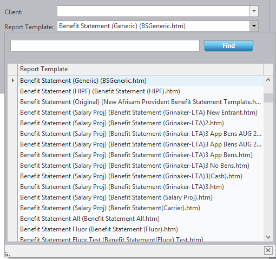
When clicking in the “Report Template” column a search pad will open allowing you to identify the template to be used when generating the batch.
IMPORTANT NOTE:
Please consult with your Everest consultant when making changes to this screen to ensure that changes are done correctly.