Client Contribution Run
CLIENT CONTRIBUTION RUN
BY

Introduction
In general, it is advised to perform contribution runs via the workflow process as it is a guided, and more secure, process and there are many validations in place (refer to the manual “Workflow Contributions Runs”), but in special cases we recommend processing manually.
Examples of these scenarios are:
- Adjustments need to be made for a month where the contribution run via the workflow has been finalised
- A single Paypoint needs to be adjusted
- Where an adjustment needs to be made to one member only
- Catchup for new Fund take-on
This guide details a Client Contribution Run.
Client Contribution Run
Use this guide if you need to rerun the contributions where there are more than 5 members who require changes and are distributed across multiple paypoints.
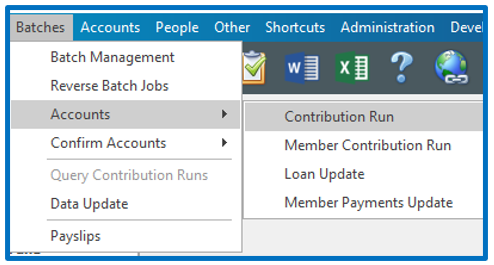
While on the client, go to Batches → Accounts → Contribution Run:
A Batch Editor screen will open. Click on the “Edit” button at the bottom of the screen to make the form editable.
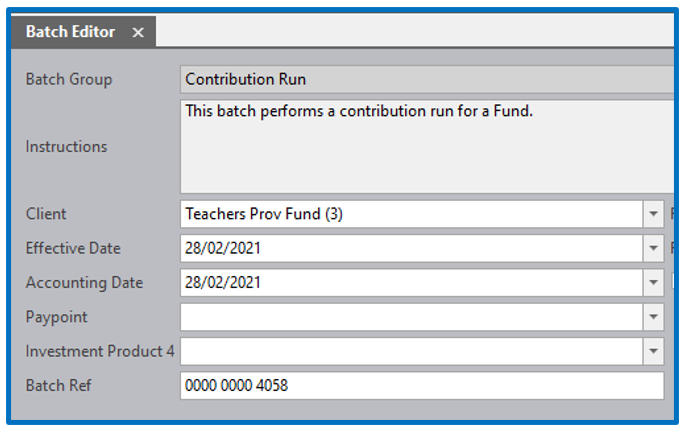
Client: This should be pre-populated if you were on the correct client when you started the process
Effective Date: This date can be left as the current date, or made to correlate with the month end date that you are running contributions for
Accounting Date: This must be the month end date that you are running contributions for
Paypoint: Leave blank
Investment Product 4: Leave Blank
Batch Ref: This is auto populated by Everest
Click on the “Save” and “Execute” buttons at the bottom of the screen.
You will receive 2 reports:
Contribution Run Queries:
This report will advise if there are any issues with the contribution run. Missing Risk Choice can be ignored IF the members are not meant to have Risk.
Errors that cannot be ignored are:
No Investment Mandate
DOB Missing
Should you find the second report, the Contribution Report, has no values then return to the Contribution Run Queries report to look for members who have errors.

Contribution Run Report:
Depending on the database, and client requirements, the report may extract in html or excel.
It is the same report that is generated during the workflow: 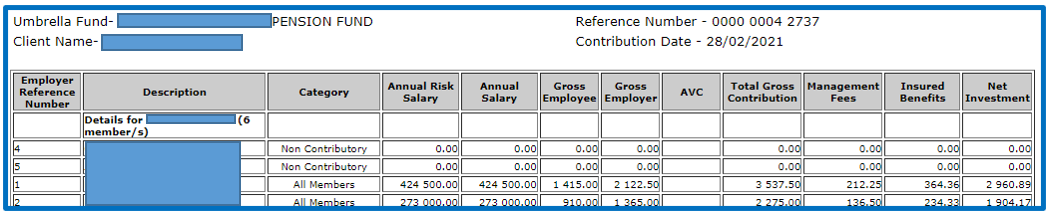
Confirming Contribution Run
Once you are happy that the values are correct, your supervisor can confirm the contributions.
Go to Batches → Confirm Accounts → Client Contributions:
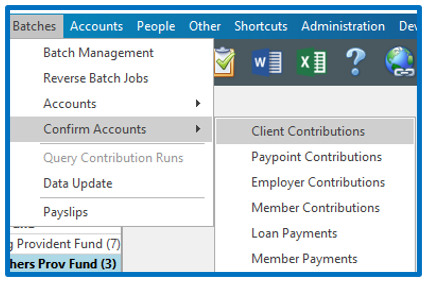
The screen that opens reflects the totals for the contribution run. If the totals are correct, double click on the confirm hyperlink:

Once confirmed the screen will be cleared.
NB! A rerun contribution will require that you advise the system that monies have already been received for the contribution run.
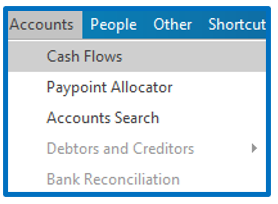
To do so, while on the client, go to Accounts → Cashflows:
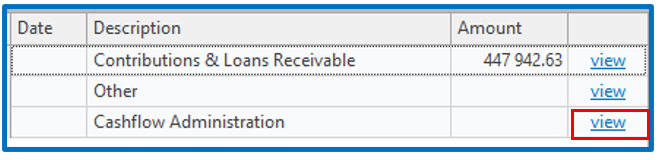
Double click on the view hyperlink next to Cashflow Administration:
You will note the tick in the “To Collect” box next to the month that has been rerun:

Untick the box, then “Save” and “Close”.
Disclaimer and Copyright
DISCLAIMER
Please note, whilst care is taken to illustrate numerous scenarios, it is impossible to detail all instances and therefore this document should merely serve as a guide for the purposes of demonstrating system functionality and conducting employee training.
In accordance with the above paragraph, this training manual is published and distributed on the basis that EBSphere (Pty) Ltd is not responsible/accountable for any actions taken by users of information contained in this training manual nor for any error in or omission from this manual.
EBSphere (Pty) Ltd does not accept any responsibility whatsoever for a misrepresentation performed by any person in respect of claims, losses or damage or any other matter, either direct or consequential arising out of or in relation to the use and reliance, whether wholly or partially, upon any information contained or products referred to in this manual.
Further, the contents of this training manual are subject to change without any notice and further highlight the need for this training manual to serve only as a guide.
COPYRIGHT
This documentation and the software described in it is the exclusive property of EBSphere (Pty) Ltd. This manual or the software may not be copied in whole or part, without the express written consent of EBSphere (Pty) Ltd. Under the law, copying includes translating into another language or format.
EBSphere (Pty) Limited
P.O. Box 785803
Sandton
2146