SQL Performance Baseline
Last modified by Mohamed Varachia on 2024/11/06 08:54
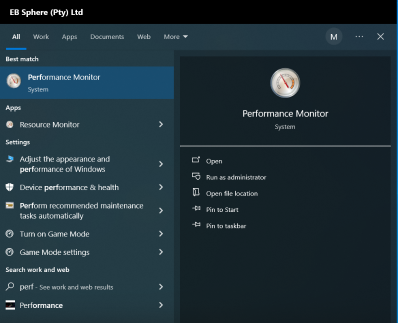
- Type "perfmon" in the Windows search bar and open the Performance Monitor app.
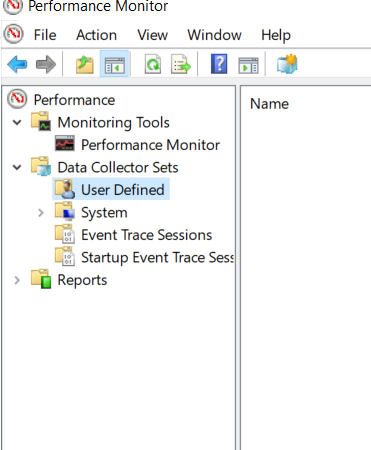
- Navigate to Data Collector Sets and click on User Defined.
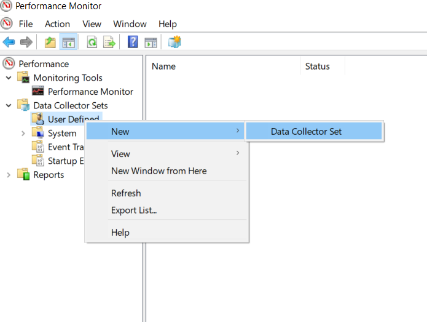
- Right-click User Defined, select New, and then choose Data Collector Set.
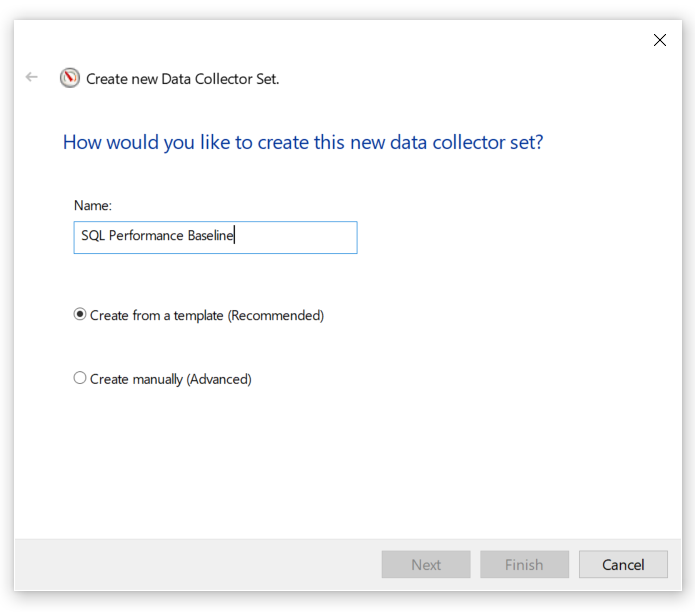
- In the dialog box, enter "SQL Performance Baseline" as the name. Choose Create from a template, click Next.
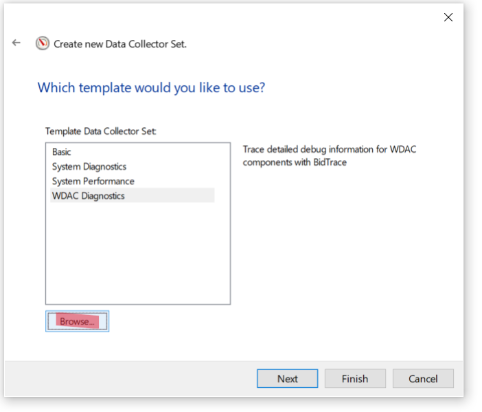
- Click Browse and navigate to the XML file provided for the template and click Next.
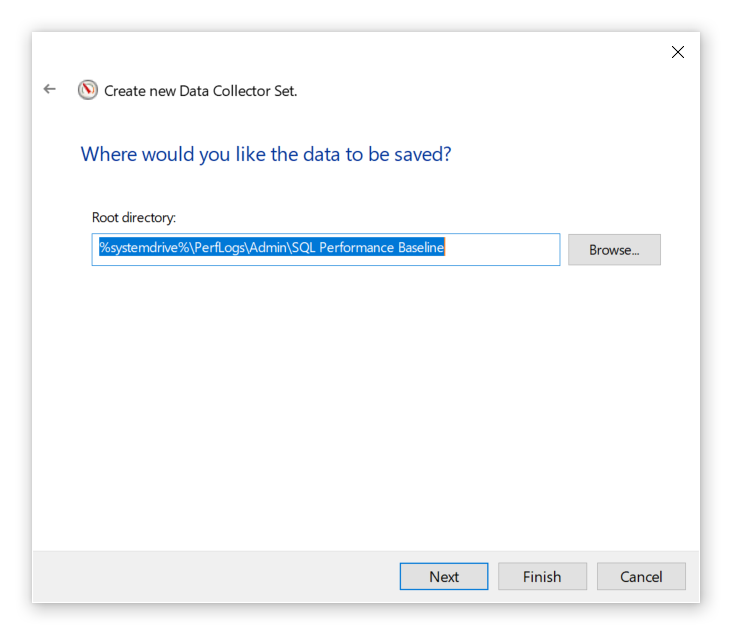
- Set the Root Directory to the desired folder on a non-business-critical drive with ample space (around 700 MB per day) and click Next.
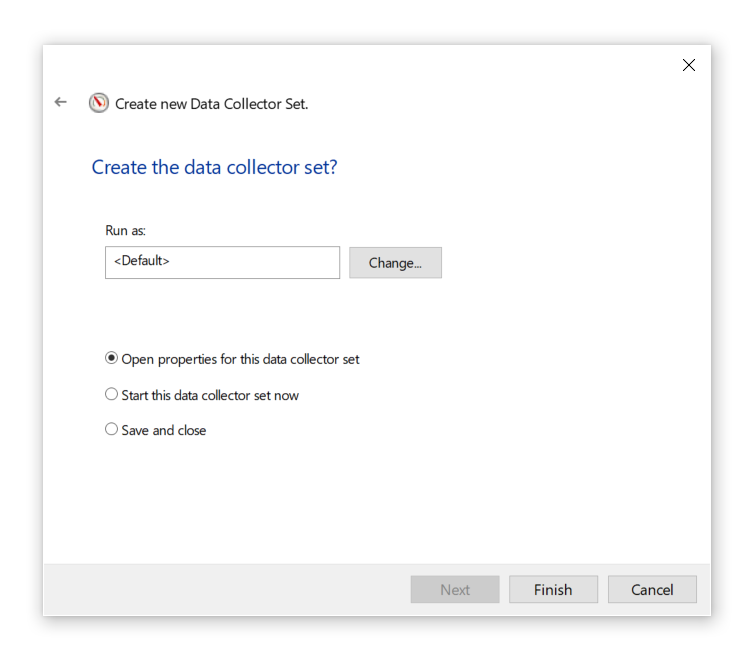
- Select Open properties for this data collector set and click Finish.
- In the properties window, go to the Schedule tab.
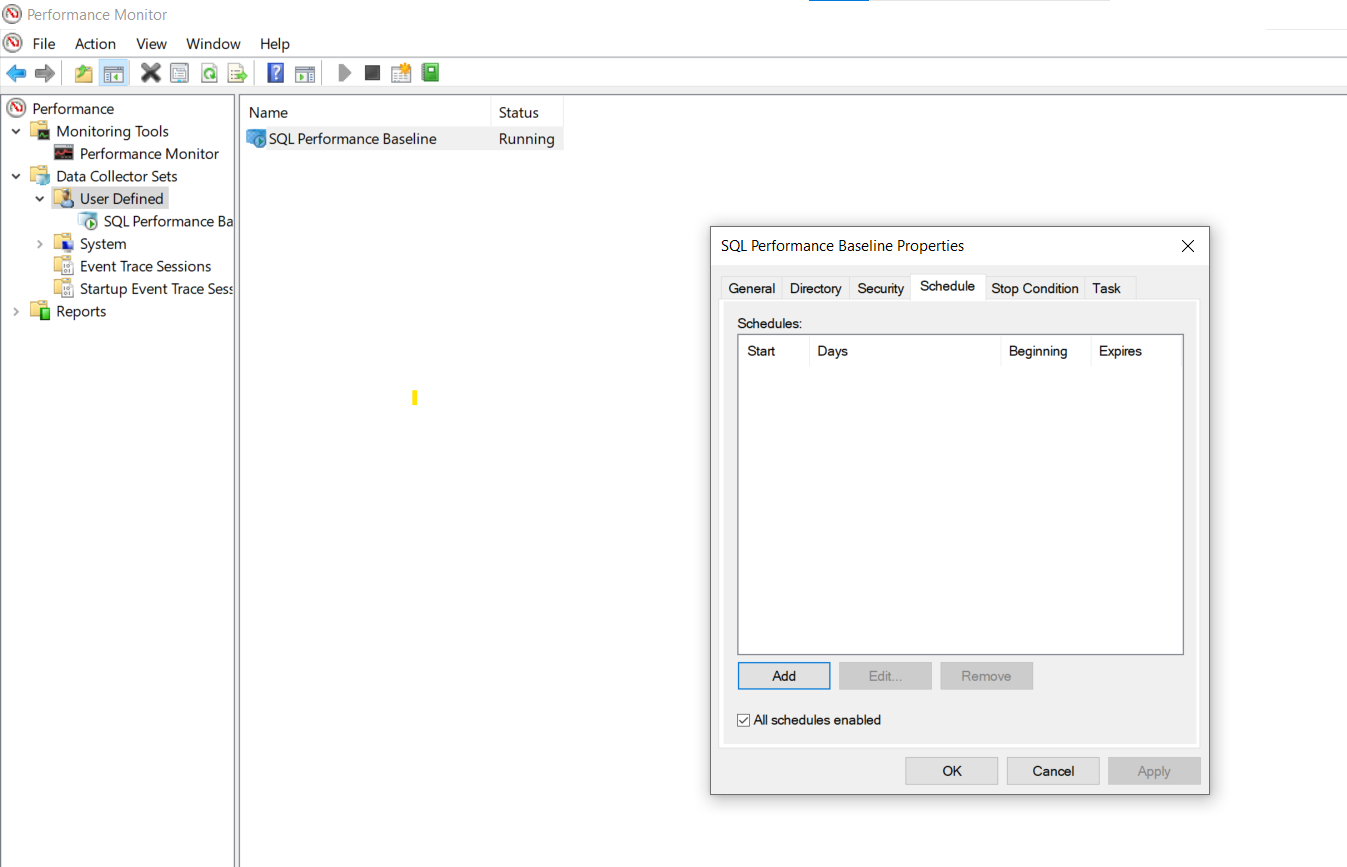
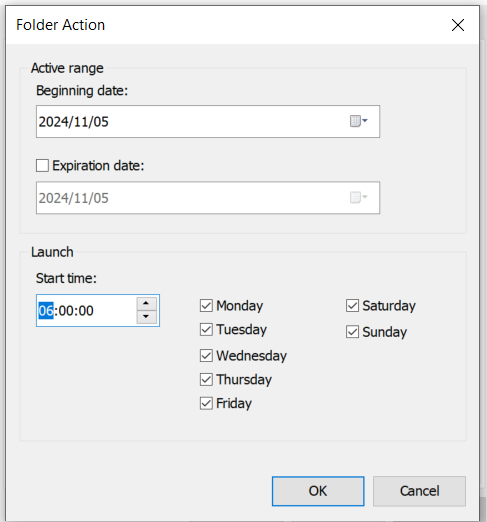
- Click Add, set the Start time to 6:00 AM, and select all days, then click OK.
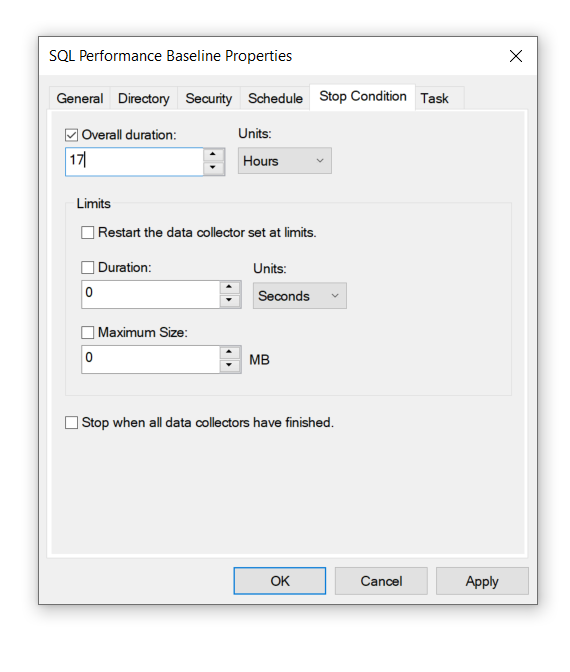
- Navigate to the Stop Condition tab. Check Overall Duration, set Units to Hours, and enter 17 to stop at 11 PM. Click OK to save settings.
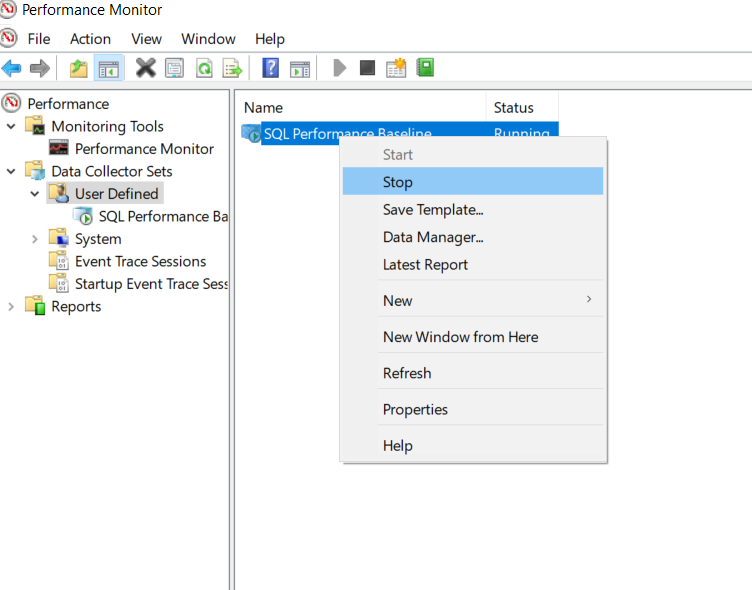
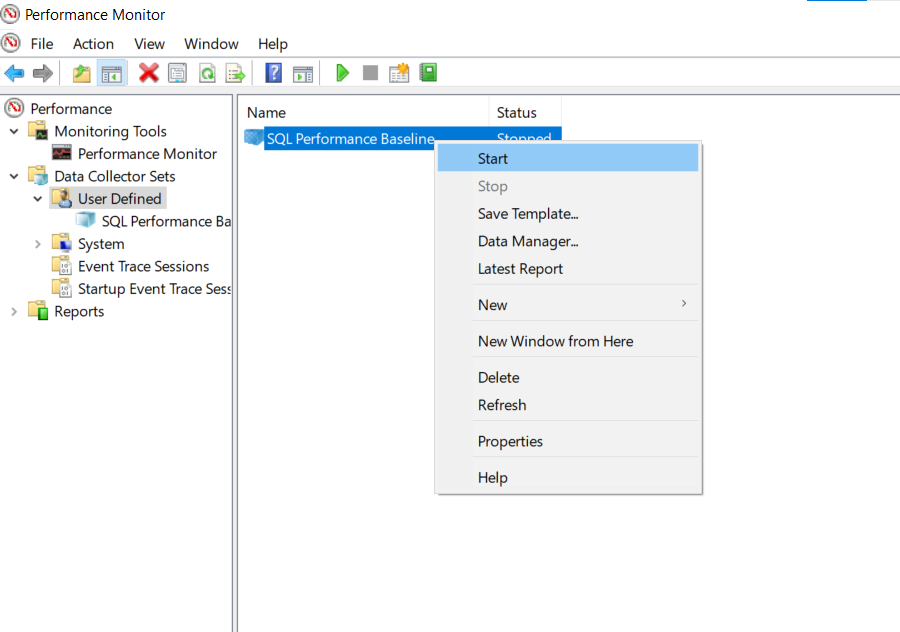
- Under User Defined, right-click on SQL Performance Baseline and select Start.
- Go to the folder specified in Step 6 to confirm that the data file is being created (If no file appears, check folder permissions to ensure the running account has create and write access)
- If the file is created, right-click on SQL Performance Baseline and select Stop.