Test Page


EVEREST.NET OVERVIEW

Please note whilst care is taken to illustrate numerous scenarios, it is impossible to detail all instances and therefore this document should serve merely as a guide.
COPYRIGHT
This documentation and the software described in it is the exclusive property of EBSphere (Pty) Ltd. This manual or the software may not be copied in whole or part, without the express written consent of EBSphere (Pty) Ltd. Under the law, copying includes translating into another language or format.
EBSphere (Pty) Limited
P.O. Box 785803
Sandton
2146

Table of Contents
Login Procedure 4
Basic Screen Design 5
Parents vs. Clients vs. Members 6
Client Menu 8
Member Menu 11
Batches Menu 12
Accounts Menu 15
People Menu 16
Other Menu 17
Shortcuts Menu 18
Administration Menu 19
Icons 25
Search Functionality 26
Everest Abbreviations/ Glossary 32
 Log in Procedure
To logon to the Everest System, double click on the Everest.NET icon on your desktop.

The user will need to select the Database they want to connect to by selecting from the dropdown. The user will then need to complete the Username and Password before clicking on the “Login” button.

Once the password has been entered, the system will validate the Regional Settings of the User’s machine. Should the Date format be incorrect i.e. NOT dd/mm/yyyy, a prompt will appear requesting whether this change be made now or at a later stage.
Click on OK.
Basic Screen Design

Establishment and Client Area


Processing Area


Workflow and Search Area
Parent vs. Client vs. Members
Simplistically, the term “Parent” refers to the main legal entity of the Fund i.e. an Umbrella Fund Arrangement or the Free-Standing Arrangement.
The term “Client” refers to all participating employers belonging to the Parent.
All Parents with their respective Clients belong to various folders i.e. Provident Funds, Pension Funds, Terminated Funds (as shown below) etc.


Parent

Client
“Members” are the employees of the “Client” who must be designated to a Paypoint and Category (dealt with under the “Client Menu” component of this document).
In summary, the hierarchy of the Fund is as follows:


Folder i.e. Provident Fund



Parent i.e. Parent #15



Client i.e. Company #25 (25)



Category i.e. All Members


Paypoint i.e. Johannesburg


Members
Client Menu
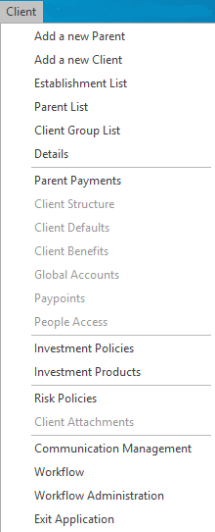
Add a new Parent Used to add a new Parent to the database.
Add a new Client
Used to add a Participating Employer to an existing Parent.
Establishment List
Lists all the Establishments loaded on the database. This section is used to view and or edit details of the respective Establishment.
Parent List
Lists all the Parents loaded on the database. This section is used to view and or edit details of the respective Parent.
Client Group List
Grouping of two different funds (Hybrid Schemes) for one client, mostly for reporting purposes.
Details
This section is used to view and or edit details of the respective Client.
Client Structure
This section allows for categorisation of membership as per the Rules or Special Rules of the Fund. Normal Retirement Ages, Eligibility Criteria and Expenses are defined per Category of membership. Please note that the expenses referred to in this section relate to member expenses which are calculated and accrued from the monthly contribution run.
Client Defaults
This section allows for the User to default all information at a Category Level thereby alleviating the administrator of data input at a member level. The Defaults are used for Funds where categories have standardised contribution, investment and risk options. The User may choose any combination of these default options. Once defaulted, all data changes must be affected at this level as no changes will be permitted at a member level.
Client Benefits
This section allows for the setup of benefit structures as per the Rules of the Fund i.e. Withdrawal, Death, Retirement etc.
Client Global Accounts
These Reserve Accounts are set up at a System level and are only utilised here should Reserve accounts be necessitated.
Paypoints
Paypoint details are loaded via this screen.
People Access
All users designated to this Client are loaded here.
Investment Policies
The investment policies are the actual investment contracts between the Fund and the Investment Manager. The setup of the Investment Policies is performed at a System Settings Level.
Investment Products
The Investment Products are the investments that are owned by members of the Fund and are specific to the Parent. The Investment Products are reflected on all member related correspondence.
Risk Policies
The setup of the Risk Policy is performed at a Parent Level. Each Risk Type e.g. GLA, PHI etc. necessitates a separate Risk Policy. At month end, the system will calculate risk premiums according to the Policy setup. Risk Benefits are also calculated accordingly.
Client Attachments
Client Attachments apply to Insured Arrangements only. The Client Attachments screen allows Users to link common risk policies to various clients.
Communication Management
A virtual filing component of the system which allows for storage of documents at a Parent, Client or Member level. Various Document Types can trigger workflow processes dependent on the setup of the Document Types via the Administration Menu of the Everest System.
Workflow
This section reflects all Workflow Items in progress for the selected User.
Workflow Administration
This is a monitoring component which allows management to view the status of all workflow items that have been initiated.
Member Menu

Search
Select this item to Search all members in the selected Client. Numerous methods of Searching for Members exist – these are elaborated later in this document.
Add a new member
This process should rather be performed via a Member Data Import however the functionality of adding a member manually does exist.
Tax Form Management
This section of the Everest System records all information required for tax applications and PAYE reconciliation purposes. Tax applications are validated and populated via a workflow process and are merely uploaded to SARS via this section. In addition, all cancelled directives are recorded and uploaded to SARS.
Batches Menu

Batch Management
Any process which requires calculation or extraction of data is termed a Batch. All processes whether they be importing/exporting of data, report extraction or workflow processes are performed via this section.
Reverse Batch Jobs
At Management level, certain Batch jobs can be reversed via this component.
Accounts

Contribution Run
This section, which can be run at a Parent or Client level, allows for the calculation of the month end accruals. A report is produced, and all data is held in a Temporary table until such time as the process is confirmed below. Paypoint or Employer Group contribution runs can be accommodated at a Client level.
Member Contribution Run
This item allows for the calculation of month end accruals for an individual member and is usually used on an ad hoc basis. A report is produced, and all data is held in a Temporary table until the process is confirmed below.
Establishment Contribution Run
This item allows for the calculation of month end accruals for an Establishment. A report is produced, and all data is held in a Temporary table until the process is confirmed below.
Loan Update
For direct housing loans, this item calculates the month end repayments expected. A report is produced, and all data is held in a Temporary table until such time as the process is confirmed below.
Member Payments Update
This batch performs the payment calculations for pensioners and generates a preliminary report for a month. A report is produced, and all data is held in a Temporary table until the process is confirmed below.
Confirm Accounts
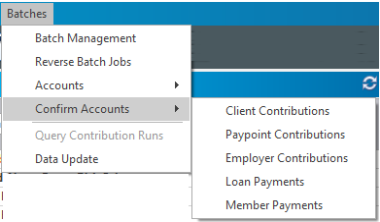
Client Contributions
This item effectively transfers the data from a Temporary Table of the Parent or Client (discussed above) to the Live Tables. At this point, all information will appear in member records and will be posted to the relevant accounting ledgers.
Paypoint Contributions
This item effectively transfers the data from a Temporary Table of the Paypoint (discussed above) to the Live Tables. At this point, all information will appear in member records and will be posted to the relevant accounting ledgers.
Employer Contributions
This item effectively transfers the data from a Temporary Table of the Employer Group (discussed above) to the Live Tables. At this point, all information will appear in member records and will be posted to the relevant accounting ledgers.
Loan Payments
This item effectively transfers the data from a Temporary Table (discussed above) to the Live Tables. At this point, all information will appear in member records and will be posted to the relevant accounting ledgers.
Member Payments
This item effectively transfers the data from a Temporary Table (discussed above) to the Live Tables. At this point, all information will appear in member records and will be posted to the relevant accounting ledgers.
Query Contribution Run
Generates a Management Report reflecting the status of all contribution runs.
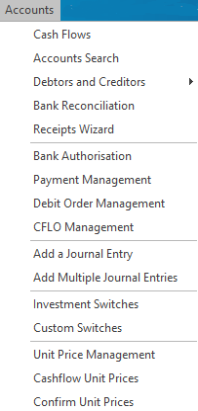
Accounts Menu


This menu is used exclusively by the Accounts Department and is elaborated on extensively in the Accounts Module.
People Menu

Search
This item records all People in the database. Users and Contacts are also loaded on this screen. Each individual record has a unique system generated System Number to avoid duplication of records. The search functionality is dealt with under the “Search Function” component of this document.
Client Contacts
All Client specific Contacts should be linked and maintained here.
Client Access
This section provides a list of all Users and the Clients that they have access to. Additional Access permissions can be granted at this level to either a specific client or a group of clients.
Other Menu

Factor Types
These apply to Defined Benefit arrangements only and is used in the calculation of Actuarial Reserve Benefits.
Factors
These apply to Defined Benefit arrangements only and is used in the calculation of Actuarial Reserve Benefits.
Decrement Types
These apply to Defined Benefit arrangements only and is used in the calculation of Actuarial Reserve Benefits.
Decrements
These apply to Defined Benefit arrangements only and is used in the calculation of Actuarial Reserve Benefits.
Vesting Tables
This component allows for the insertion of Vesting Scales.
Commission Scales
This item is specific to Insured arrangements only and allows for the calculation of Broker commission.
LOA Scales
Allows for the insertion of LOA scales.
Shortcuts Menu
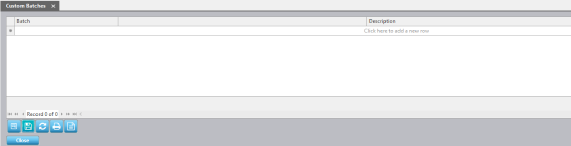
This item allows the User to customise all Batches required on a frequent basis. Essentially, once customised, it is a shortcut to the Batch Management screen for the Batches selected in this setup.
Administration Menu
Documented below are the most commonly used menus only.
Note Settings

System Parameters
The System Parameters allow for Administration House customisation used in data validation e.g. Salary Max Increase Percentage etc.
Client Note Variables
The Note Type is loaded under “Descriptions”. These will pull through in the Client Menu under Details when loading a specific note. System Reports reflecting these automated notes can be generated.
Member Notes Variables
The Note Types reflected here are recorded in the Notes hyperlink of a member record and can trigger exceptions to the relevant workflows validated. System Reports reflecting these automated notes can be generated.
Financial Settings

System Bank Accounts
All Bank Accounts (Creditor Payees) utilised throughout the system are loaded here. The Accounts can be categorised into Adhoc Accounts, Risk Accounts, Administration Costs etc.
Banks
All banks and branch codes are preloaded. When loading new details ensure that the branch does not already exist.
Bank System Settings
All banks and branch codes are preloaded. When loading new details ensure that the branch does not already exist.
Payment Authorisation Groups
The system allows for the authorization of payments. The Group Names are set up in this field.
Insurers
Insurers are pre-loaded. Always keep information up to date.
Reassurers
Risk Reassurers can be listed in Everest. Always keep information up to date.
Investment Houses and Products
The investment houses and their corresponding products must be loaded here.
Investment Flows
In most cases the information required here will not change as the flow of assets can only be reflected as “disinvestment” and “investment”.
Investment Classes
The Investment Classes are preloaded and can be used for reporting purposes.
Journal Entries
In most cases, accounting transactions are automated by the system and these transactions have corresponding ledger items with descriptions written up in the general ledger. In certain instances, the transactions are not automated by a specific process which necessitates the writing up of a journal entry. In this instance, the journal entries are mapped here.
Global Accounts
The global accounts are reserve accounts set up at a System level and will filter through to the respective Parents.
Static Settings

Expense Types
All Expense Types are entered here. These Expense Types will be used in the calculation of month end expenses.
Dependent Types
All Dependent Types are entered here. These Dependent Types will be used in the calculation of month end expenses.
Document Management Categories
The document management categories are effectively the “files” into which correspondence will be placed. Each Administration House should customise their Document Management Categories.
Batch Details
This item reflects a list of all executable Batches and associated permissions.
Contact Types
A list of all Contact Types should be loaded. These Contact Types will be used for system generated correspondence as well as in the Client Contact Database.
Salary Frequencies
All salary frequencies e.g. monthly, weekly etc. have been preloaded and therefore this item is merely reflected for information purposes.
Fund Types
All fund types e.g. Pension Funds, Provident Funds, Investment Funds etc. will be input here and will be displayed under the “Select a Client” block in the upper left-hand corner of the screen.
Exit Types
The exit types are descriptions of the various forms of benefit types e.g. Withdrawal, Death-in-service etc.
Single Premium Types
The Single Premium Types are Money Types used for importing of member values. All Single Premium Types must be classified as follows:
Employer/Employee/Special
Taxable/Non-Taxable
Repeatable/Non-Repeatable
Each Administration House should set up and maintain their Single Premium Types.
Payment Types
The Payment Types loaded here apply to all Pension and Trust Payments.
Loan Fee Details
All Details regarding the Direct Housing Loan Fees are recorded here.
VAT Rates
Legislated VAT Rates are recorded here.
PAYE Tables
Legislated PAYE Tables are recorded here and are used for Pension Payments made via the system.
Task Types
The various task types are recorded, together with the frequency of the task.
Client Categories
The Client Categories function allows for the display of Clients under the “Select a Client” display as per the Category setup. It allows for easy access of information e.g. clients who belong to an approved or unapproved scheme etc. The various Client Categories should be specified here.
Client Groups
The Client Groups function can be utilised where a Client has different Fund types e.g. Pension Fund, Provident Fund and a Risk Fund. The grouping allows for all the Fund types to be combined for purposes of reporting etc. The various Client Groups should be specified here.
Client Business Groups
The Client Business Groups function allows for the grouping of Clients for viewing and reporting purposes. The new groupings are easily viewed under the “Select a Client” display. The various Client Business Groups should be specified here.
Industries
This field allows for data to be reported on at an Industry Level. Should this be required, complete the Industry listing here.
Regions
This field allows for data to be regionalised for reporting purposes. Should this be required, complete the Region listing here.
Job Descriptions
This field allows for job descriptions to be reported on. Should this be required, complete the job description listing here.
Client Access Groups
The Client Access Group function essentially allows for the granting of access of Client Groups to users. Once Clients have been allocated to the various Client Access Groups, users will be given access to one or more of the Groups, which have been set up. The various Client Access Groups should be specified here.
Workflow Groups
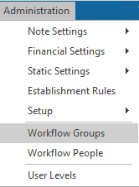
A Workflow models the Administration House’s business processes (with validations) and records them in a step by step process on the system. All workflow processes are listed here, and this section details each step of the process selected.
Workflow People
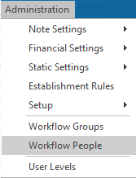
The workflow people are effectively the personnel involved in any one of the steps of the process, whether it be an administrator, a cheque signatory etc.
User Levels
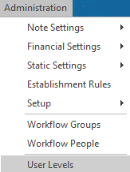
The User levels effectively defines who has access to viewing and or editing of the various components on the Everest System.
Icons
Shortcuts to the relevant Menu Paths.
 | Search Members Search for members in selected clients | |
 | Client Contact Search Search for Clients Contacts | |
 | View Document Management A shortcut to the Document Management System | |
 | Workflow A shortcut to the User’s current workflows | |
 | Open Batch Management Screen A shortcut to the Batch Management Screen | |
 | Search Persons Allows you to search for a person across the whole database | |
 | Add a new Task Allows for the addition of a new task | |
 | View my tasks Allows for the viewing of all tasks | |
 | Microsoft Word A shortcut to Microsoft Word | |
 | Microsoft Excel A shortcut to Microsoft Excel | |
 | Open the Help Folder A shortcut to Help Menu | |
 | Log an Issue Log an issue on Issue Log | |
 | Lock Application Locks the system | |
 | Factory Reset Refreshes the screen back to the custom setting | |
Search Function
Once membership has been imported, numerous methods of Searching for Members exist. We have documented the various scenarios:
Searching for “People” across the Entire Database
All Users, Members, Contacts etc. have one unique identifiable “People” record on the database. This is effectively where all static information relating to that person is held. One “People” record per individual should exist and any static data changes made at this level will automatically filter through to the member record (should the individual be a member of a Fund as well). In many instances, the individual will have a “People” record only and not necessarily a Member record as well. An example of this would be a Risk Contact who necessitates a “People” record for record keeping and contact purposes but will not necessitate a Member record as the individual is not a member of a Fund on the system.
To search for an individual over the entire people database, proceed as follows:
In the Search Notepad, on the bottom left hand corner of the screen, type either the Surname, Name, EE No/Company No, System No or ID Number. Click on the People Menu and then click Search.


In the Search Notepad, on the bottom left hand corner of the screen, type either the Surname, Name, EE No, System No or ID Number. Click on the People Menu and then click Search.


Once the individual has been located, the following screen will appear.

By clicking on the view hyperlink, all static information loaded for the individual will be displayed. For members, the information listed here would have been imported via the Member Import (detailed in the first section of this document).
For all individuals, other than Members, ensure that the Designation (at the bottom of the screen) has been flagged accordingly. This component allows for the filtering of “People” records available within other screens.

By clicking on the Fund Information Tab, a record of the Fund/s to whom this individual belongs will be displayed. This example reflects that the individual has only a “People” record and not a Member record. Michelle Tinline is not a member of any of the Funds under administration on the System. This individual is merely a Contact, whether she is a Principal Officer to the Fund, Client Contact etc.

Should a Fund Membership record exist, the User is able to locate the member within the selected Client as identified later in the document.
Searching for a Client
To Search for a client on the Database, proceed as follows:



Type Client Name and it will bring up the clients as you type.

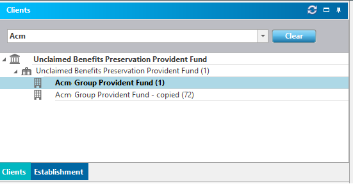



All clients with the
characters used in the search pad will be reflected. Locate the relevant client and click on the Client within the respective folder.
- Searching for Members within a Specific Client
Once the Client has been located (as above) the user is able to search for members within the selected Client. To Search for members within the specific Client, proceed as follows:


Type the Surname, Name, EE No, System No or ID Number (or a combination of these variables) and click on the “Search” button.

Once the individual has been located, the following screen will appear.

- Searching for a list of all Members within the Specific Client
Should the User wish to locate all members within the specific Client, proceed as follows:

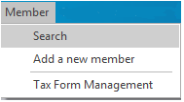


Once the relevant
Client has been selected,
click on the Member Menu and select “Search”. This will locate all the members within that client. The records will be displayed in alphabetical order according to Surname.

- Searching for an Individual Member within the Member Listing from (B) above
Should the User wish to locate an individual member within the list of members (as documented above), proceed as follows:

Right Click and select “Search” or enter the Member’s name in the “Search” box and click Enter. The system will locate the member selected.





Everest Abbreviations/Glossary
Everest Abbreviations / Glossary
Accum : Accumulated interest rate
basis : Actuarial Basis
ben : Member Beneficiaries
Client : The term “Client” refers to all participating employers belonging to the “Parent”.
Cflo : Cash Flow
cons : Member contribution details
DJC : Date Joined Company
DJF : Date Joined Fund
DOX : Date of Exit
DPS : Date of pensionable service
EE : Employee
ER : Employer
elig : Eligibility
exit : Member Exit Details
exp : Client Expenses
FCL : Free Cover Limit
invest : Investment Mandate Details
loans : Member Loans
med : Member Medical Details
notes : Member Notes
Parent : Simplistically, the term “Parent” refers to the main legal entity of the Fund i.e. an Umbrella Fund Arrangement or Free-Standing Arrangement.
pmt : Member Payments
Policy : Actual investment policy
Product : The Investment Products are the investments that are owned by members of the Fund and are specific to the Parent.
RFT : Retirement Fund Tax
risk : Member Risk Details
sals : Member Salary Details
single : Member Single Premium Details
trans : Member Transactions
wf : Workflows