Investments Payable
INVESTMENTS PAYABLE
BY

Investments Payable
The investment payment controls the allocation of investment records, filtered down to a member level. If payment is not made through these screens, the investment record will not be shown at a member level. Once investments have been made, the record MUST still be priced, using the “Cashflow Unit Prices” screen, for the system to accrue growth to the transaction.
Select the relevant Parent -> Accounts Menu -> Cashflows.

Double click on the view hyperlink next to “Investments Payable”.
The “Investments Payable - Client” option allows for the User to affect the investment payment in respect of individual Clients.

The screen that opens will reflect two sections, as detailed below.
- Mandated Policy Selection
- Manual Policy Selection section

The Everest system works on a two-tier investment approach. The Investment Product, which the member owns, is shown above.
The investment can either be made by manually selecting the policy to invest into OR by using pre-determined policy mandates, which are set up on the Investment Product at Parent level. In this regard refer to the “Client Menu – Investment Products”.
On the following pages we will detail:
- Manual Policy Selection
- Mandated Policy Selection
Manual Policy Selection
Select the relevant Investment Product for the appropriate Accounting Date.

Change the amount to be transferred, if necessary – NB! If the amount is changed it will ratio the amount across any employers that were included in the amount pre-populated by Everest.
To invest for specific clients rather use the “Investments Payable – Client” option.
Double click on the select hyperlink.
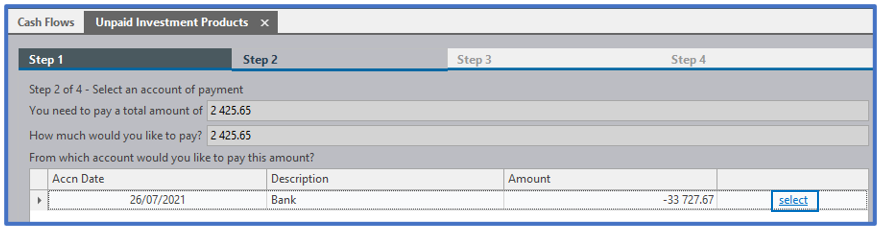
Double click on the select hyperlink located next to the Investment Policy into which Funds will be transferred.

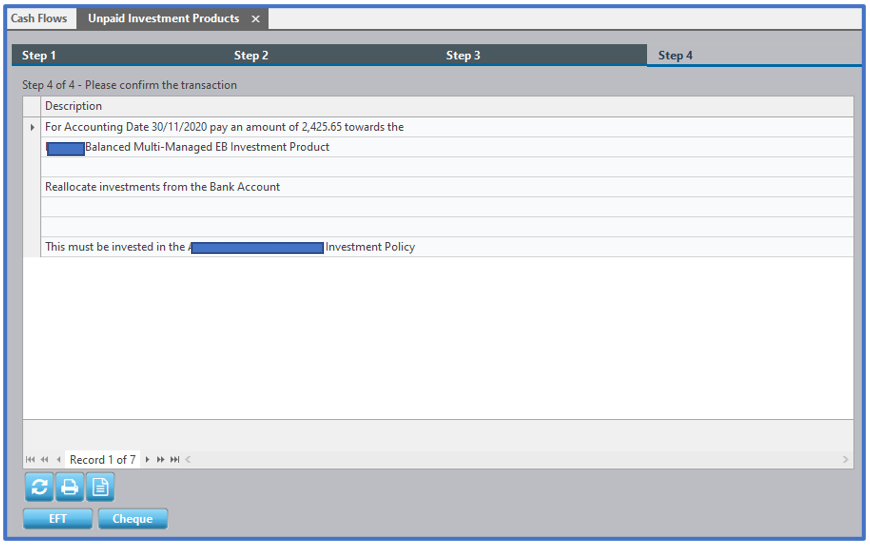
Select the payment type i.e. the “EFT” button. If the assets are to be allocated to the Cash Management Account Policy do not click on the “EFT” button, merely click on the “Cheque” button.
Press the “Edit” button. For monthly-unitised funds, ensure that the Effective Date is changed to be that of the Accounting Date. Only schemes that are unitised daily will have the Effective Date being the Actual Date.
Important Note
You must NOT change the Accounting Date, as the system uses this to match against the accrual entries. Only change the Effective Date to match the payment date, but the Accounting Date must be retained.

Press the “Save” and “Execute” buttons.
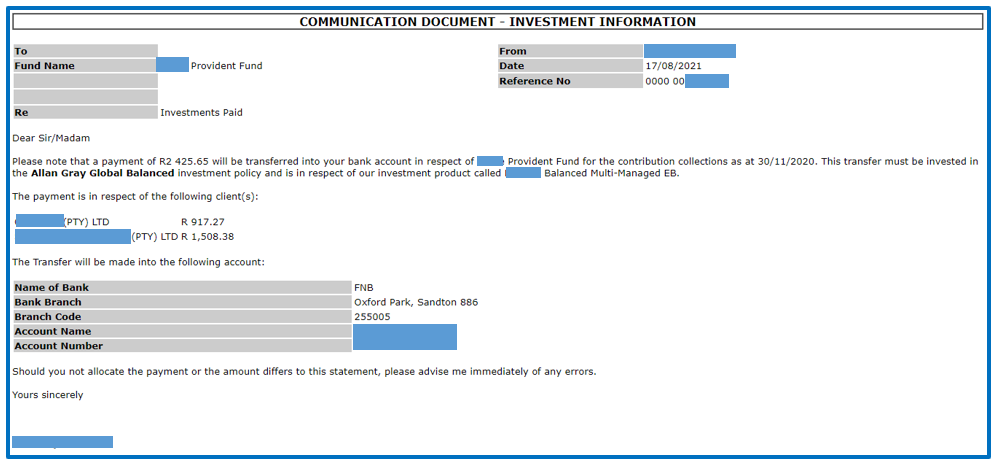
Report A communication document is generated reflecting the transaction.
This amount is entered into the Payment Management System for transfer via the electronic banking system.
Mandated Policy Selection
Select the relevant Investment Product for the appropriate Accounting Date.

Press the “Edit” button. For monthly-unitised funds, ensure that the Effective Date is changed to be that of the Accounting Date.
Only schemes that are unitised daily will have the Effective Date being the Actual Date.
Important Note
You must NOT change the Accounting Date, as the system uses this to match against the accrual entries. Only change the Effective Date to match the payment date, but the Accounting Date must be retained.
Change the amount to be transferred, if necessary – NB!
If the amount is changed it will ratio the amount across any employers that were included in the amount pre-populated by Everest. To invest for specific clients rather use the “Investments Payable – Client” option.

Press the “Save” and “Execute” buttons.
Report A communication document is generated reflecting the transaction. This amount is entered into the Payment Management System for transfer via the electronic banking system.

Disclaimer and Copyright
DISCLAIMER
Please note, whilst care is taken to illustrate numerous scenarios, it is impossible to detail all instances and therefore this document should merely serve as a guide for the purposes of demonstrating system functionality and conducting employee training.
In accordance with the above paragraph, this training manual is published and distributed on the basis that EBSphere (Pty) Ltd is not responsible/accountable for any actions taken by users of information contained in this training manual nor for any error in or omission from this manual.
EBSphere (Pty) Ltd does not accept any responsibility whatsoever for a misrepresentation performed by any person in respect of claims, losses or damage or any other matter, either direct or consequential arising out of or in relation to the use and reliance, whether wholly or partially, upon any information contained or products referred to in this manual.
Further, the contents of this training manual are subject to change without any notice and further highlight the need for this training manual to serve only as a guide.
COPYRIGHT
This documentation and the software described in it is the exclusive property of EBSphere (Pty) Ltd. This manual or the software may not be copied in whole or part, without the express written consent of EBSphere (Pty) Ltd. Under the law, copying includes translating into another language or format.
EBSphere (Pty) Limited
P.O. Box 785803
Sandton
2146