Adjusting the Reassurance Benefit
ADJUSTING THE REASSURANCE BENEFIT
BY

Calculating the Reassurance Benefit
For Approved benefits, ensure that the Risk Policy has been set up correctly. The Client Benefit field must include the policy in order for the benefit to calculate – refer to manual “Loading Lumpsum Risk Policies”.
When exiting the member, ensure that the correct Exit Type is selected. The system will then calculate the benefit in accordance to the rules set up in the policy.
The accrual is then written into the Accounts  Cashflows Reassurance Receivable screen.

Reassurance Benefit Received Differs from Calculated Amount
Where the calculated benefit differs to the rand amount received in the Bank account, the user will need to first investigate the reason for the difference. The following points could assist in finding the difference:-
- The Risk Policy is set up incorrectly.
- The Risk Salary loaded on Everest was not updated with the latest salary.
Should either of the above need to be corrected on Everest, the user must reprocess the claim in order for Everest to calculate the correct value.
IF the above has been amended, and the value accrued on Everest still does not balance to the amount received in the Bank account, the Reassurer must confirm the difference (in most cases it will be Late payment interest, in others it could be rounding). In this case the accrual raised on Everest must be amended as follows:-
Step 1…
Using the Import Additional Reassurance Benefit Template, complete the System No, Recovery Policy Name and Recovery Amount fields. It is important to remember that the Recovery Policy Name must match the Risk Policy loaded on the system exactly - Everest will not allow the import to take place if incorrect. The Recovery Amount will be the difference between the calculated amount on Everest and the amount received in the Bank Account – i.e. the amount populated in the Recovery Amount field will either increase or decrease the current value on Everest by that amount.

Step 2…
Search for the batch “Import Additional Reassurance Benefits”. Ensure that the correct Client is selected and attach the saved file. “Save” and “Execute” the batch. The batch will import the additional amount into the member’s record. Please DO NOT recalculate the claim as this will reset the benefit amount to the Everest calculated amount.

Important Note…
Should the Share of Fund need to be recalculated and the claim is rolled back to
DOX (date of exit), the process documented above will also need to be reprocessed.
Receipting the Reassurance Amount
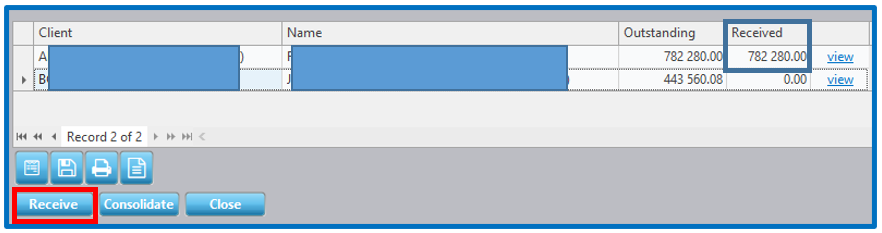
 The imported accrual is written into the Accounts Cashflows Reassurance Receivable field. The user will now need to go to this screen to receipt the amount received. Once receipted the Bank Statement Linking can take place.
Figure 4

To receipt the amount received, edit the “Received” amount and then select “Receive”:
The batch editor will open. Ensure you make the Effective Date the date it was received in the bank account:

Disclaimer and Copyright
DISCLAIMER
Please note, whilst care is taken to illustrate numerous scenarios, it is impossible to detail all instances and therefore this document should merely serve as a guide for the purposes of demonstrating system functionality and conducting employee training.
In accordance with the above paragraph, this training manual is published and distributed on the basis that EBSphere (Pty) Ltd is not responsible/accountable for any actions taken by users of information contained in this training manual nor for any error in or omission from this manual.
EBSphere (Pty) Ltd does not accept any responsibility whatsoever for a misrepresentation performed by any person in respect of claims, losses or damage or any other matter, either direct or consequential arising out of or in relation to the use and reliance, whether wholly or partially, upon any information contained or products referred to in this manual.
Further, the contents of this training manual are subject to change without any notice and further highlight the need for this training manual to serve only as a guide.
COPYRIGHT
This documentation and the software described in it is the exclusive property of EBSphere (Pty) Ltd. This manual or the software may not be copied in whole or part, without the express written consent of EBSphere (Pty) Ltd. Under the law, copying includes translating into another language or format.
EBSphere (Pty) Limited
P.O. Box 785803
Sandton
2146