Member Disability Payment Workflow
MEMBER DISABILITY PAYMENT WORKFLOW
BY

Introduction
The aim of this process is to reconcile membership, calculate & raise accruals and make payments for members who are on disability and are receiving a monthly disability income. The system will raise the accruals based on the Gross Income loaded. At payment stage, the system will automatically raise the creditors, as well as the net member payments in the accounts. These creditors are usually PAYE (Tax) and Medical Aid contributions where applicable.
Member Maintenance
New member payment details, and changes to existing member payment details, are updated in the Everest system using the ‘Member Payment Import’ template.
Please ensure that all new members have already been loaded in Everest before updating the template. The new members’ static data must first be uploaded on the system via the standard ‘Import Member Data’ batch and thereafter their payment details can be updated.
Complete the required fields in the ‘Member Payment Import’ template and save the file.

Once saved, go to the Batches  Batch Management menu and select the ‘Member Payment Import’ batch, which is used to load or update member payment details on the system.
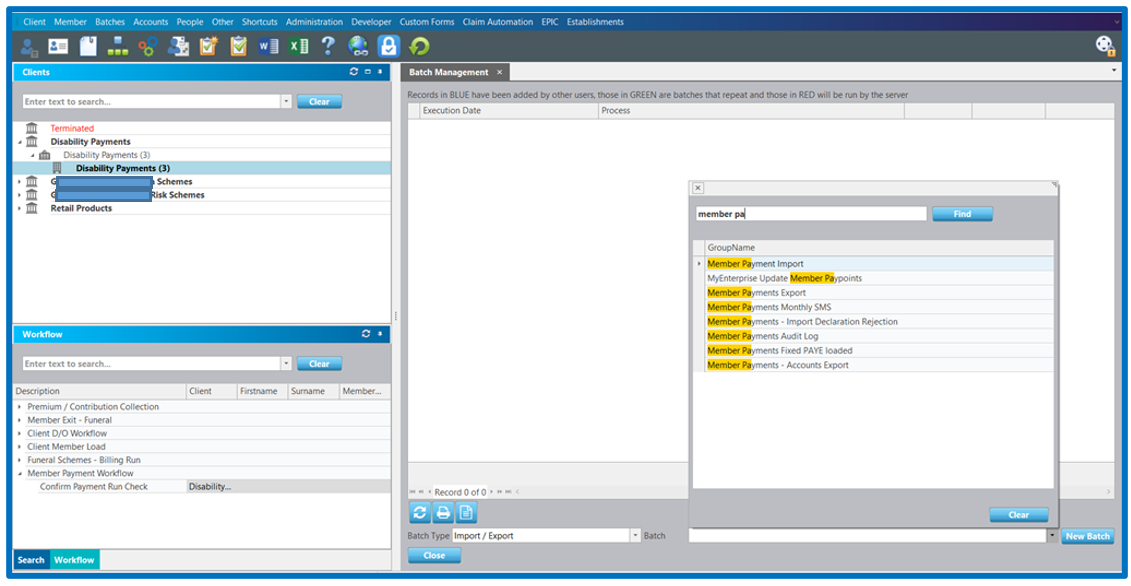
Once a batch has been selected, double-click on ‘Edit’ hyperlink to open a Batch Editor screen.

Click on the Edit button at the bottom of the page to activate the screen. Select the  icon to browse for and link your prepared import spreadsheet via the Filename field.
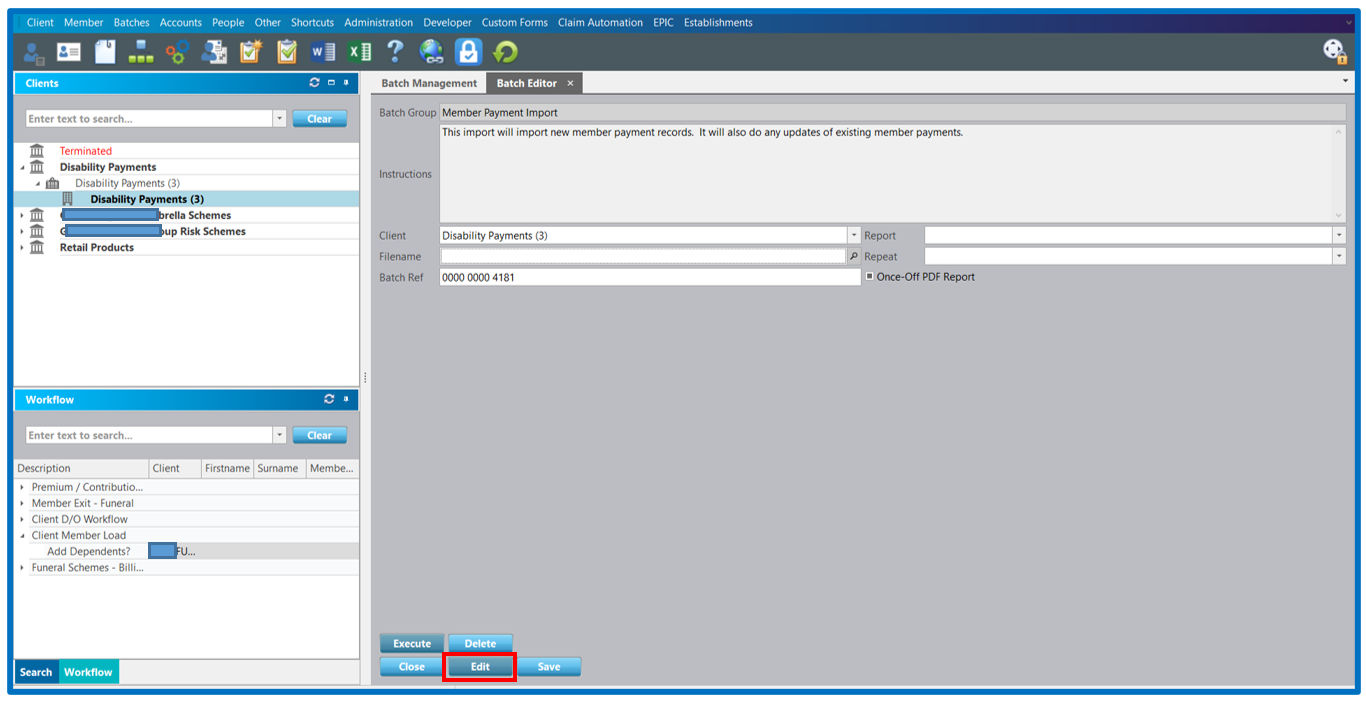
Click on the Save and the Execute buttons to process the import.
Member Payments Screen
To view the payment details loaded for a member, click on the ‘pmt’ button.
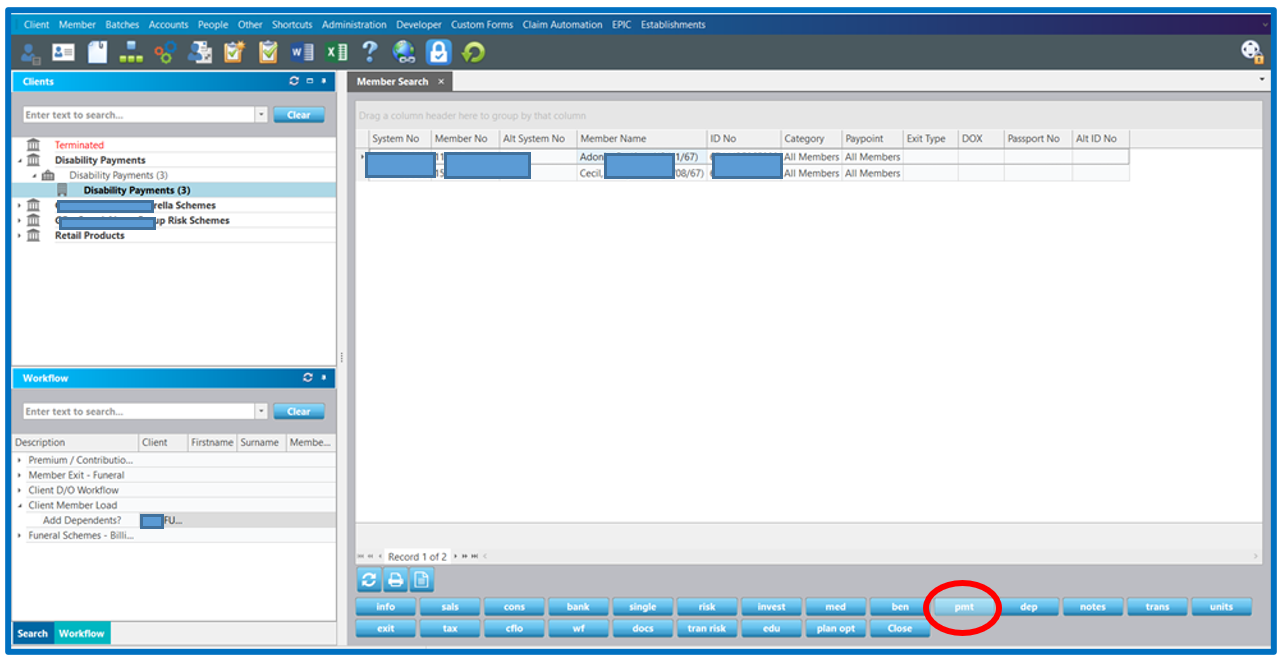
The payment lines loaded are colour coded.
Active = black
Terminated = red
Suspended = black (bold)

Double-click on the ‘bank’ hyperlink on the Member Payment Details screen to view the member’s banking details.

Double-click on the ‘suspend’ hyperlink on the Member Payment Details screen to view the payment suspension details

Annual & AdHoc Payment Increases
The system allows for both fixed amounts and % monthly payment increases. The system will apply the applicable increase to all active and suspended members.
To initiate the increase, select the ‘Member Payment Increase’ batch in Batch Management.

Double-click the ‘Edit’ hyperlink to open the Batch Editor screen.
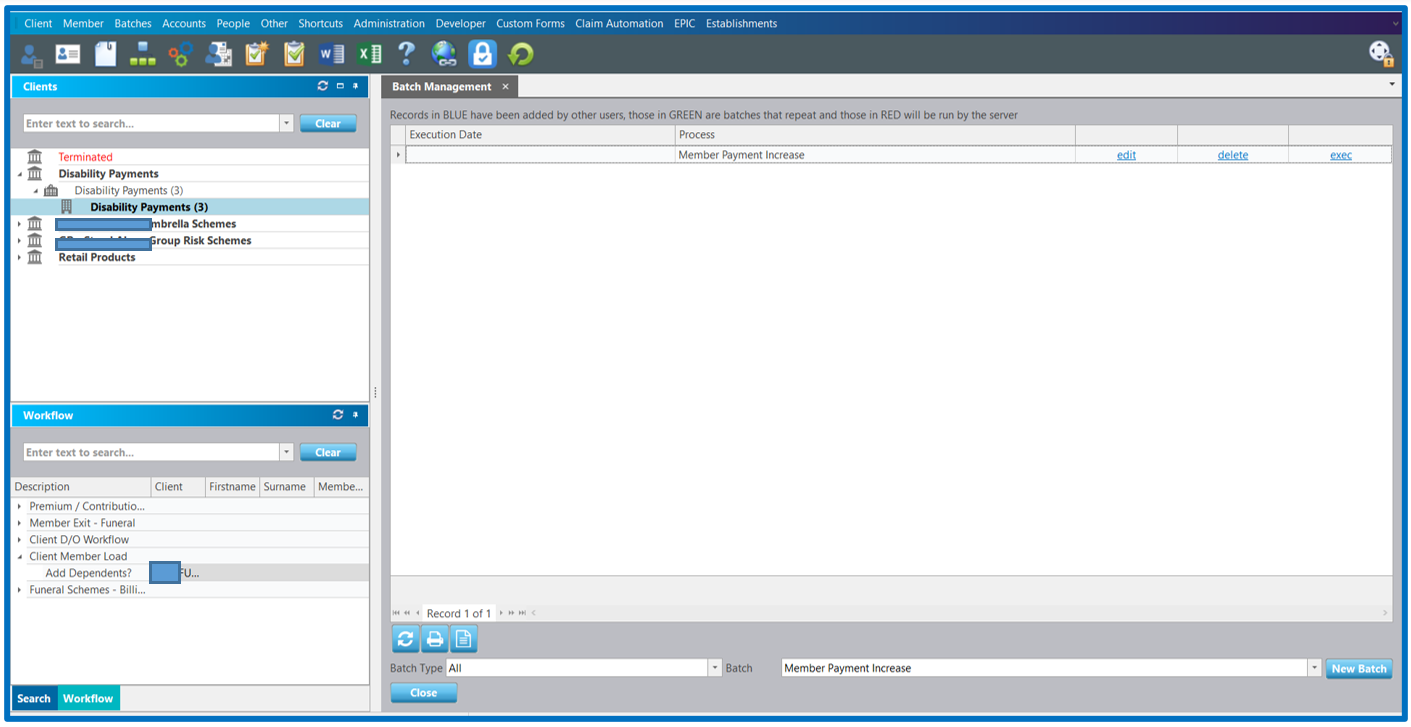
Complete the fields as follows:
Client: This field will default to the selected client.
Effective Date: This date is the date the increases are applicable from.
Percentage: This is the % increase applicable. Leave blank if the fixed amount increase will be used.
Amount 1: This is an increase amount applicable to each member. Leave blank if % increase method is applicable.
Batch Ref: System generated and must not be edited / altered.
Then ‘Save’ and ‘Execute’ the batch to implement the increase.

Member Monthly Disability Payment
This process updates the monthly accruals and allows for the member payment to take place.
Go to the Batches menu and select ‘Member Disability Payments Workflow’ to start the payments process.

Double-click on the ‘Edit’ hyperlink to open the Variables Screen.

Complete the required variables before Executing the batch.
Client: This field will default to the selected client.
Effective Date: This date is the date the process is being run.
Accounting Date: This date is the month end for which the payment is due.
Batch Ref: System generated and must not be edited / altered.
Client Parent: This is the Parent of the Client selected. Ensure that the field is updated from the drop-down list.
Select the ‘Save’ and ‘Execute’ the buttons to initiate the workflow.

The workflow item created will be visible in the Initiator’s Workflow screen.

Double-click on the workflow item created to open the workflow screen. Then click on ‘Done’ to proceed to the payment calculations.

The system will produce the Member Disability Report (Combined List) report, detailing all the members on the scheme. The status of each member is displayed in the Notes column.

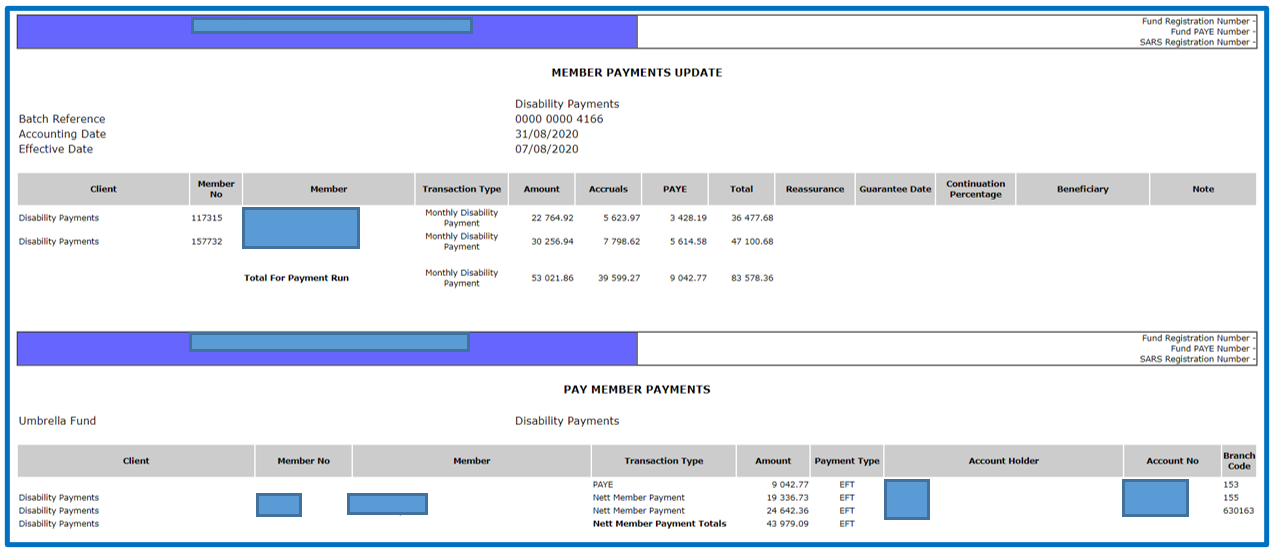
Simultaneously, a Member Payments Update report will be produced. This report contains a more detailed payment breakdown. This is a preliminary report. The member records can be updated and corrected where required and reports rerun if required.
To rerun any of the reports, click on the ‘No’ button in the screen displayed. Select the ‘Yes’ option to continue with the workflow.

The Confirm Payment Run is a Supervisor step. The Supervisor will click either ‘Yes’ to confirm / approve the run or ‘No’ to return the workflow back to the Administrator for corrections.

Once the Payment run has been confirmed, the workflow will come to the last screen and it can be completed by clicking on ‘Done’.

The confirmed payments will now be on the Payment Management screen to be paid through the bank account.

Other Reports
Member Payment Payslips
Once the payments have been done, the payslips can be printed by running a Member Payment Payslips batch.
Client: This field will default to the selected client.
Member: Insert the copied Member or leave it blank to run for entire scheme.
Accounting Date: This date is the month end for which the payment was run.
Client Parent: This is a Parent of the Client selected and must be selected from the drop-down list.

Member Disability Reinstate
The Member Disability Reinstate batch is used to reinstate the suspended member.
Client: This field will default to the selected client.
Member: Insert the copied Member.
Effective Date: This date is the month end for which the payment was run.

The system does offer other administration and management reports. The list of these can be checked on Batch Management screen and search with Member Disability.
Disclaimer and Copyright
DISCLAIMER
Please note, whilst care is taken to illustrate numerous scenarios, it is impossible to detail all instances and therefore this document should merely serve as a guide for the purposes of demonstrating system functionality and conducting employee training.
In accordance with the above paragraph, this training manual is published and distributed on the basis that EBSphere (Pty) Ltd is not responsible/accountable for any actions taken by users of information contained in this training manual nor for any error in or omission from this manual.
EBSphere (Pty) Ltd does not accept any responsibility whatsoever for a misrepresentation performed by any person in respect of claims, losses or damage or any other matter, either direct or consequential arising out of or in relation to the use and reliance, whether wholly or partially, upon any information contained or products referred to in this manual.
Further, the contents of this training manual are subject to change without any notice and further highlight the need for this training manual to serve only as a guide.
COPYRIGHT
This documentation and the software described in it is the exclusive property of EBSphere (Pty) Ltd. This manual or the software may not be copied in whole or part, without the express written consent of EBSphere (Pty) Ltd. Under the law, copying includes translating into another language or format.
EBSphere (Pty) Limited
P.O. Box 785803
Sandton
2146