Adding a Client & Client Details
ADDING A CLIENT & CLIENT DETAILS
BY

The process of adding a new Client differs depending on whether a new Parent has just been created or whether a Parent exists with Clients already loaded.
In this example, we have detailed the two scenarios i.e.:
- Adding a new Client to a new Parent
- Adding a new Client to an existing Parent
Adding a new Client to a new Parent
Client Select the relevant Client.
You will note that a Client entitled “Default Client Name” is automatically reflected under the new Parent that has been created.

Client Menu Select “Details”

Client Details Complete all relevant information relating to the client. The Client Name, which appears i,e. “Default Client Name”, must be overridden here with the true Client Name.

SARS No:
The format must conform to the SARS requirements: 18/20/04/000000
PF No:
The format must conform to the SARS requirements: 12/8/1234567/123456
There are 19 characters overall. There must be 7 characters after the 12/8/ and then 6 at the end. If the number is 12/8/456/000000 this is not correct, please ensure there are leading 0’s before the 456 e.g.:12/8/0000456/000000
Only where this client is a participating employer in an umbrella fund must the ‘000000’ be replaced by the number on the FSB approval forms for that participating employer.
PAYE No:
The format must conform to the SARS requirements: 7000000000
There are 10 characters. The number must start with 7.

Save: Press the “Save” button.
Close: Press the “Close” button.
Select a Client: You will note that the wording “Default Client Name” has been replaced with the true Client Name.
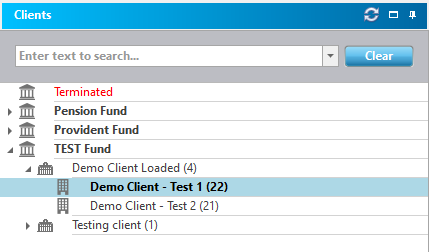
Adding a new client to an existing Parent
Parent: Select the relevant Parent
Client Menu: Select “Add a new Client”

Client Name: Enter the Client name in the text box displayed. Click on the “Add” button.
Prompt: A text box appears confirming whether a new Client should be added.
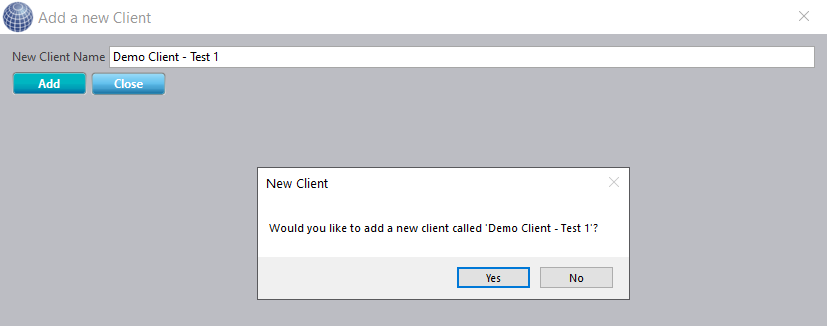
You will note that the new Client has been added to the existing Parent.

NOTE
Once the new Client has been added, the following screens need to be updated. Please refer to the relevant manuals.
Client Structure
Client Defaults
Client Benefits
Investment Fees
Disclaimer and Copyright
DISCLAIMER
Please note, whilst care is taken to illustrate numerous scenarios, it is impossible to detail all instances and therefore this document should merely serve as a guide for the purposes of demonstrating system functionality and conducting employee training.
In accordance with the above paragraph, this training manual is published and distributed on the basis that EBSphere (Pty) Ltd is not responsible/accountable for any actions taken by users of information contained in this training manual nor for any error in or omission from this manual.
EBSphere (Pty) Ltd does not accept any responsibility whatsoever for a misrepresentation performed by any person in respect of claims, losses or damage or any other matter, either direct or consequential arising out of or in relation to the use and reliance, whether wholly or partially, upon any information contained or products referred to in this manual.
Further, the contents of this training manual are subject to change without any notice and further highlight the need for this training manual to serve only as a guide.
COPYRIGHT
This documentation and the software described in it is the exclusive property of EBSphere (Pty) Ltd. This manual or the software may not be copied in whole or part, without the express written consent of EBSphere (Pty) Ltd. Under the law, copying includes translating into another language or format.
EBSphere (Pty) Limited
P.O. Box 785803
Sandton
2146