Financial Settings
FINANCIAL SETTINGS
BY

Financial Settings – System Bank Accounts
All creditor (not member) banking details are loaded in this screen. The System Administrator will be responsible for the loading of System Bank Accounts. Ensure that the correct bank account details have been input for accurate electronic banking transactions.
Go to Administration  Financial Settings System Bank Accounts:

The bank accounts are categorized as follows:
Adhoc: Bank Account details used periodically to pay a creditor
Administration Costs: Bank Account details used for the payment of Management Fees
Investment Managers: Bank Account details used for payment to an Asset Manager
Risk Managers: Bank Account details used for payment to a Risk Manager
Transfer Funds: Bank Account details used when transferring member benefits to another Approved Fund.
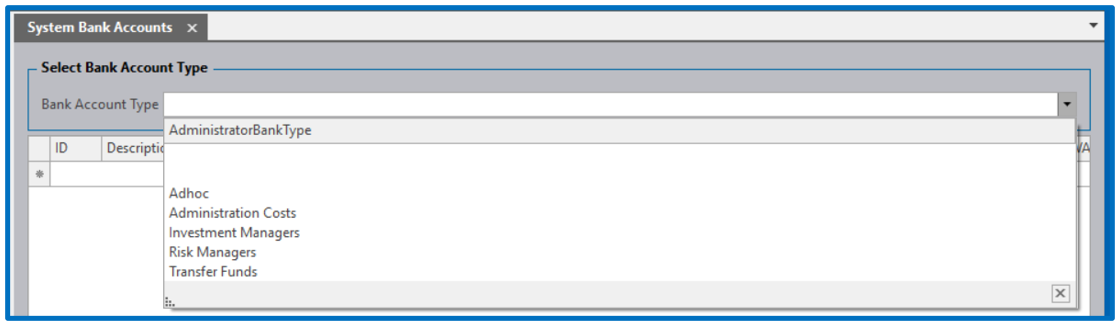
Select the option required from the drop down to view existing or add new banking details.

Financial Settings – System Bank Accounts - Unapproved
Some clients may have a process for loading system bank accounts that will require it to be reviewed and approved before being committed to the System Bank Accounts menu. The Administrator will first load the info in these fields, which then saves the info in a temp table before committing it to System Bank Accounts.
Go to Administration Financial Settings System Bank Accounts - Unapproved:

Financial Settings – Banks
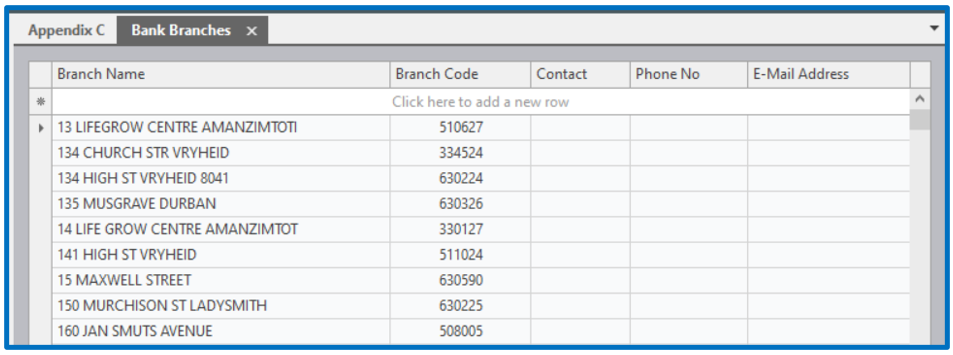
All banks, and their respective branch details, have been preloaded. Your System Administrator will be responsible for loading new branches. Ensure that the branch has not already been loaded. Confirm this by checking the branch code, as it may be under another name.
Go to Administration Financial Settings Banks

Click on the branches hyperlink next to the specific Bank.
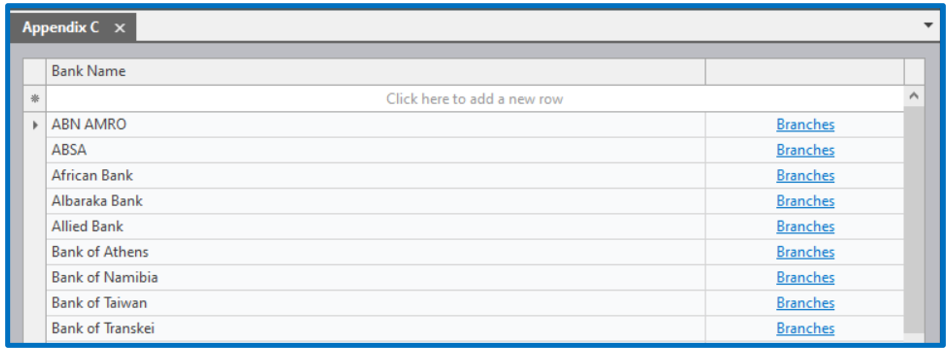
A list of all preloaded branches appears. Search for the specific branch code before loading a new one.
Financial Settings – Bank System Settings
The integration of the banking system is configured in these menu options, depending on the Administrator’s requirements.
Go to Administration Financial Settings Bank System Settings

Select the appropriate sub menu to configure the specific requirement.
Bank Configuration
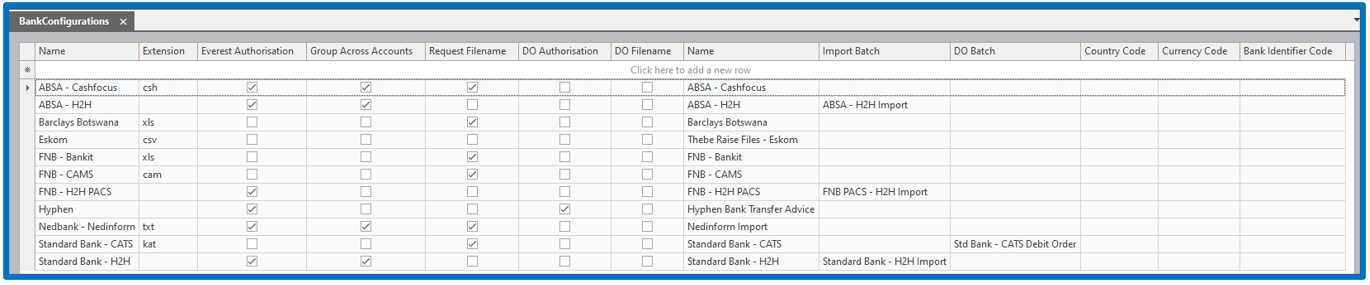
Host To Host (ABSA, FNB, Standard Bank & Standard Bank ATG)

Bank Batch Groups

Host to Host Mobile Money

Host to Host Pesa

Financial Settings – Annuity Payment Settings
The configuration of the Member Payments takes place in these menu options, depending on the Member Payment Client’s requirement. The configuration will be done per Parent requiring the configuration.
Go to Administration Financial Settings Annuity Payment Settings

Select the appropriate sub menu to configure the specific requirement.
Payment Type Settings
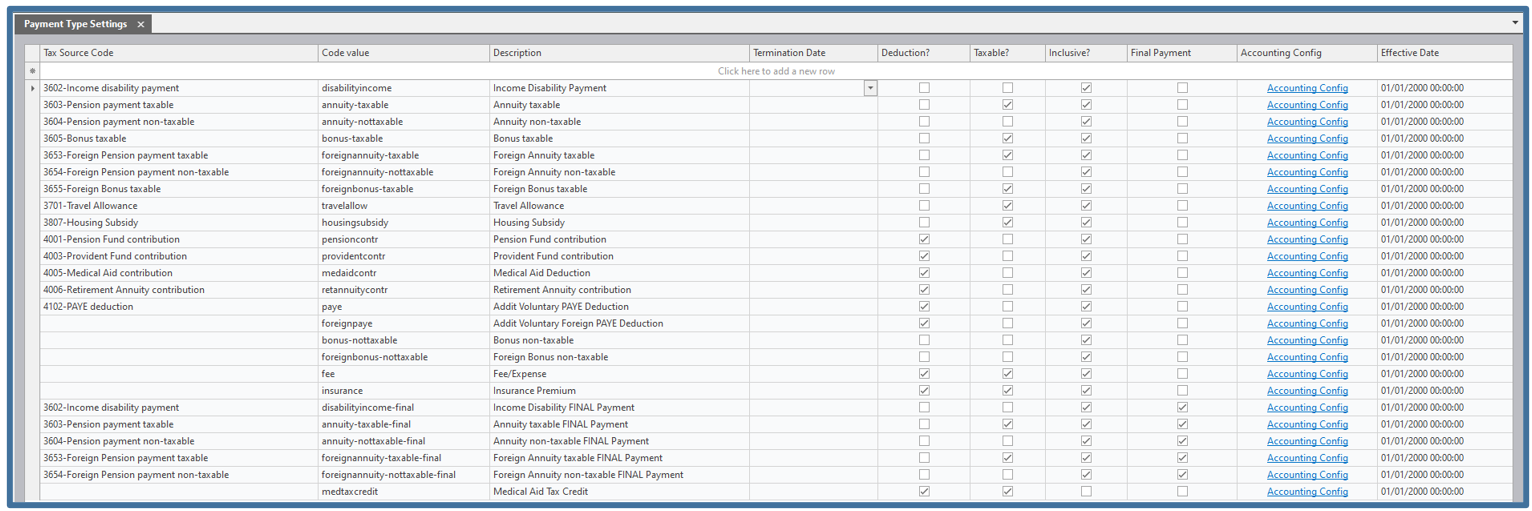
Client Payment Type Settings

Client Money Type Settings

Financial Settings – Payment Authorisation Groups
The configuration of the Payment Authorisation Groups takes place in this menu option, based on the Administrator’s requirements. This allows the Administrator to configure groups of users for authorization purposes.
Go to Administration Financial Settings Payment Authorisation Groups

Selecting the edit hyperlink allows the users to be added per group.

Select from the drop down to add the user to the required group.

Financial Settings – Insurers
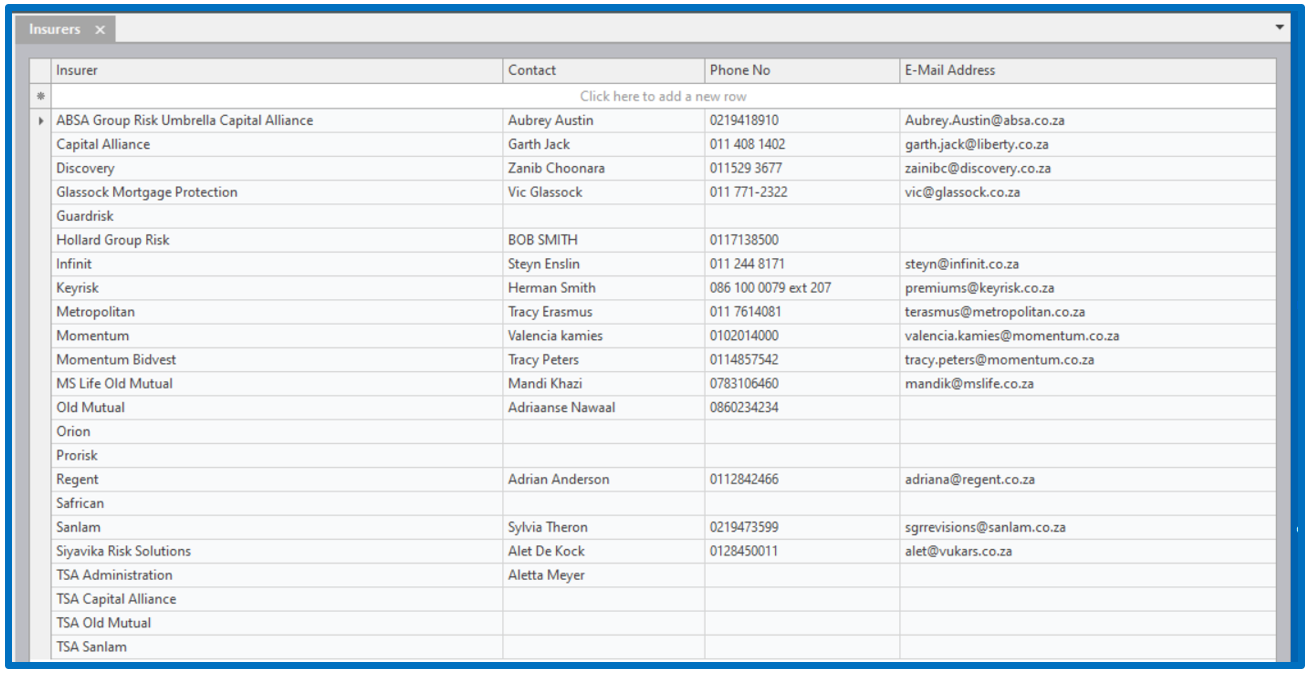
All Insurers have been pre-loaded. Your System Administrator will be responsible for inputting additional insurer information.
Go to Administration Financial Settings Insurers

A list of Insurers pre-loaded is reflected.
Financial Settings – Reassurers
Your System Administrator will be responsible for inputting Reassurer information.
Go to Administration Financial Settings Reassurers

This menu allows the Administrator to list the Reassurers used within their processes.

Financial Settings – Investment Houses and Products
Some Investment Houses and Products Information is pre-loaded. Ensure that the Product Information is kept up to date as the investment houses are continuously developing new products to maintain a competitive edge. Your System Administrator will be responsible for the loading of Product information.
Go to Administration Financial Settings Investment Houses and Products

The Investment Product information relates to the entire spectrum of Parents and Clients loaded on the Everest System. Once loaded, the relevant Investment Product information can be filtered through to the selected Parent.
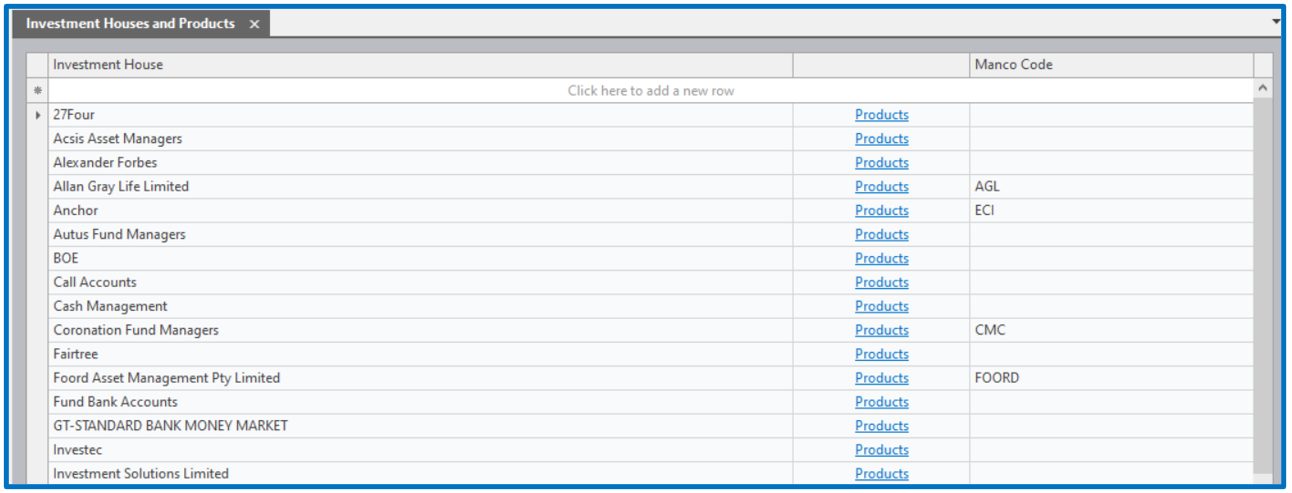
For ease of reference select the required Product, right click the mouse and press “Filter”. Scroll across and complete the nature of the Product, i.e.:
Unitised?: Is this Product Unitised? If so, add a tick to the field provided.
MM?: Is this a Money Market Portfolio? If so, add a tick to the field provided.
G’teed?: Is this a Guaranteed Fund? If so, add a tick to the field provided.
Mng’d?: Is this a Managed Fund? If so, add a tick to the field provided.

Financial Settings – Investment Flows
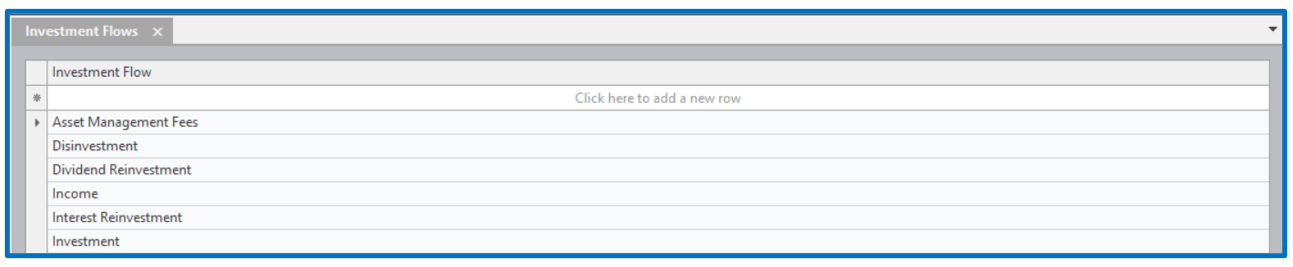
Go to Administration Financial Settings Investment Flows

Load the expected investment transaction flows.
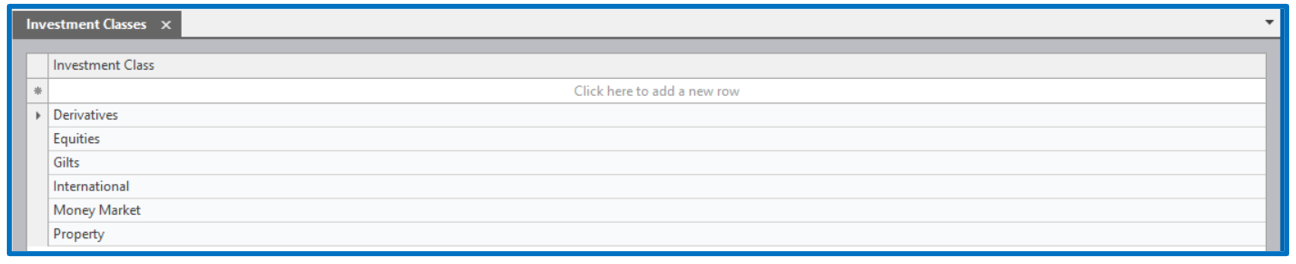
Financial Settings – Investment Classes
A list of various Investment Classes is displayed.
Go to Administration Financial Settings Investment Classes

Load the expected investment class types.
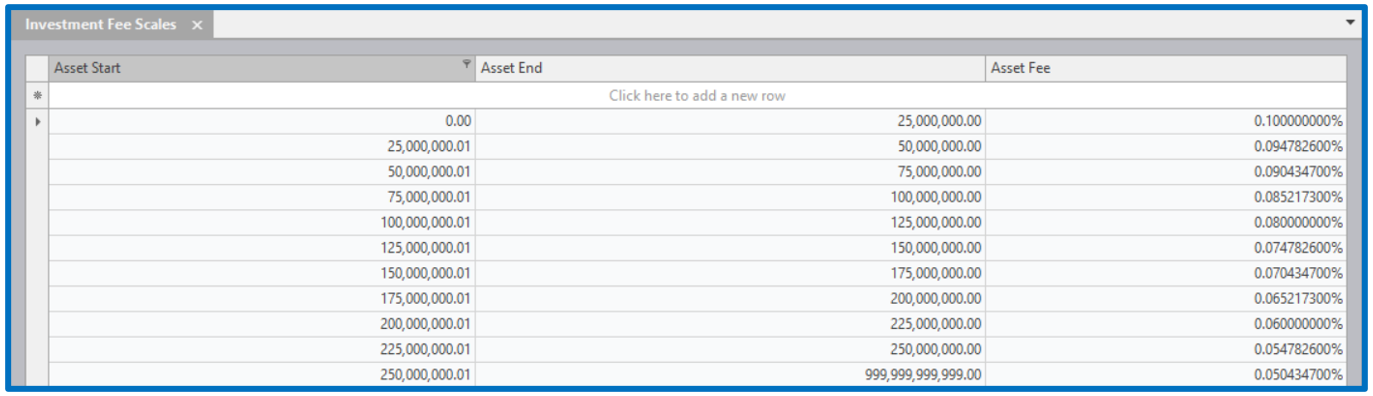
Financial Settings – Investment Fee Scales
Asset Based fee scales are loaded in these fields.
Go to Administration Financial Settings Investment Fee Scales

The first screen requires the scale to be named.

Select the edit hyperlink to load the scale.
Financial Settings – Advisory Investment Fee Scales
Broker Advisory Fee scales are loaded in these fields.
Go to Administration Financial Settings Advisory Investment Fee Scales

The first screen requires the scale to be named.
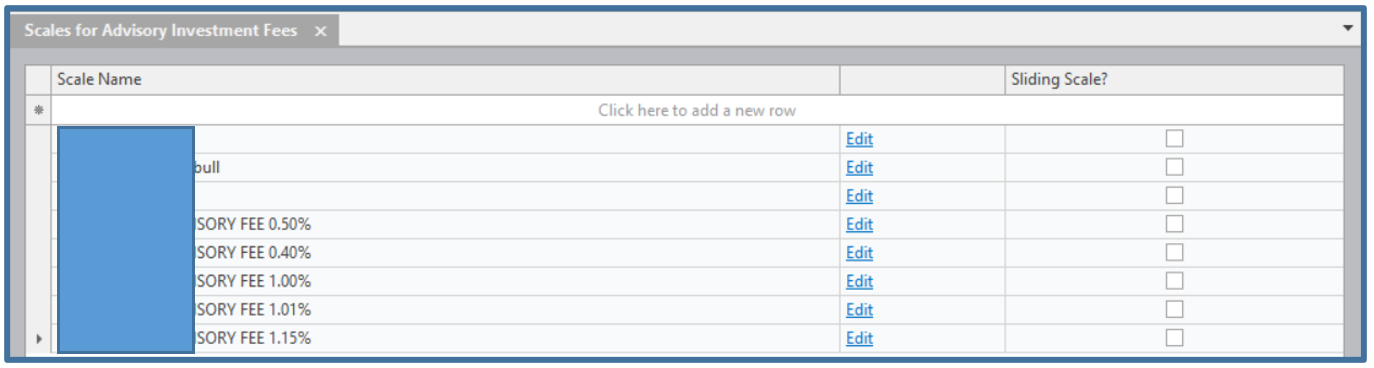
Select the edit hyperlink to load the scale.

Financial Settings – Journal Entries
Journal Entries are authorised adjustments, processed to affect the accounting elements of the Everest System. Any changes to journal entries should be affected in consultation with EBSphere (Pty) Limited, as all Journal Entries have a direct bearing on the accounting component.
Go to Administration Financial Settings Journal Entries

A list of Journal Entries is displayed.
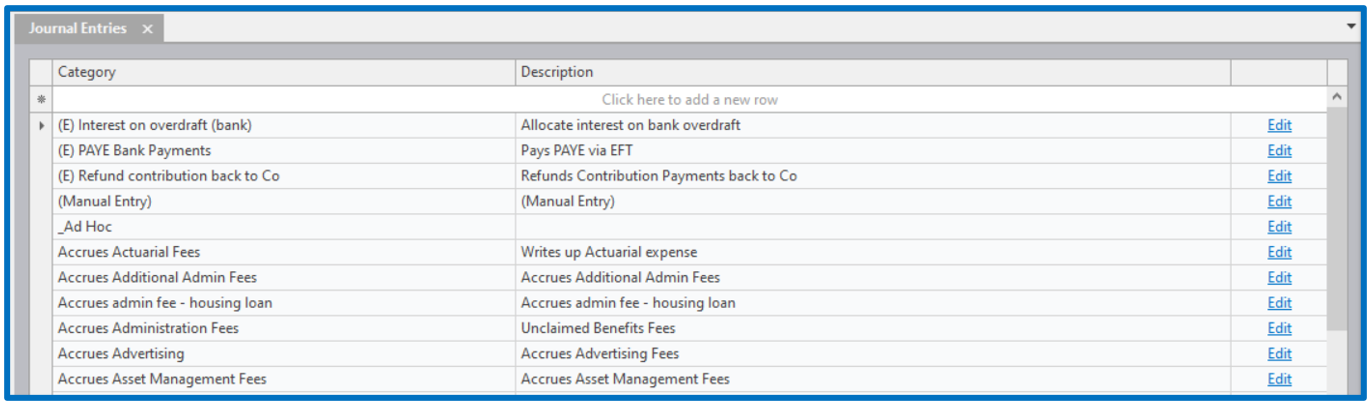
Select the Edit hyperlink to view the ledger entries to be created.

Financial Settings – Global Accounts
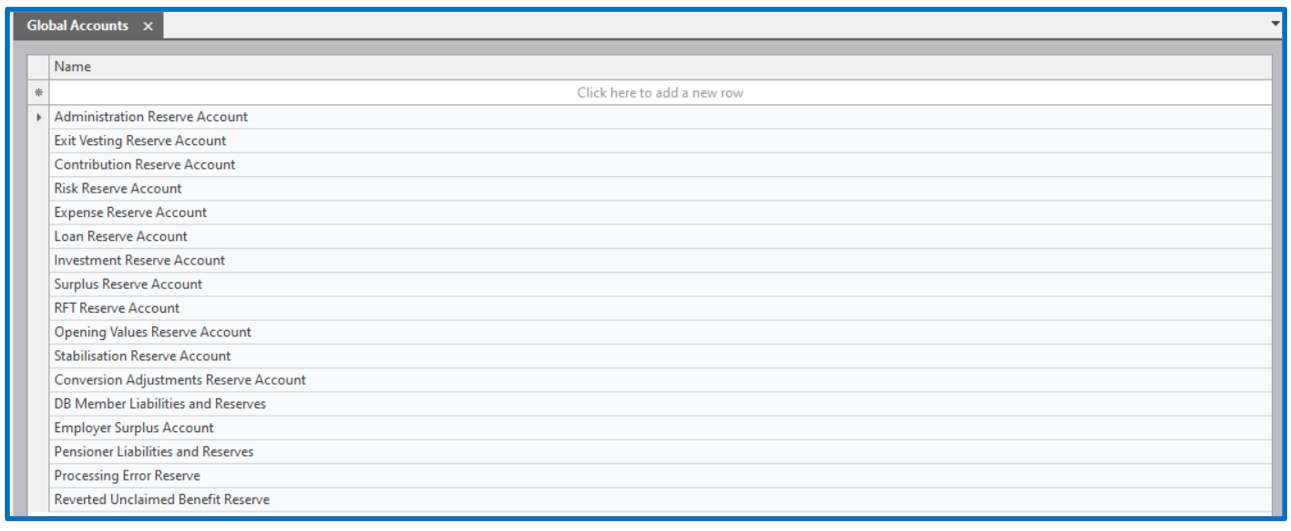
Global Accounts are reserve Accounts set up for each Fund.
Go to Administration Financial Settings Global Accounts

A list of the various Global Accounts already set up is displayed.
Disclaimer and Copyright
DISCLAIMER
Please note, whilst care is taken to illustrate numerous scenarios, it is impossible to detail all instances and therefore this document should merely serve as a guide for the purposes of demonstrating system functionality and conducting employee training.
In accordance with the above paragraph, this training manual is published and distributed on the basis that EBSphere (Pty) Ltd is not responsible/accountable for any actions taken by users of information contained in this training manual nor for any error in or omission from this manual.
EBSphere (Pty) Ltd does not accept any responsibility whatsoever for a misrepresentation performed by any person in respect of claims, losses or damage or any other matter, either direct or consequential arising out of or in relation to the use and reliance, whether wholly or partially, upon any information contained or products referred to in this manual.
Further, the contents of this training manual are subject to change without any notice and further highlight the need for this training manual to serve only as a guide.
COPYRIGHT
This documentation and the software described in it is the exclusive property of EBSphere (Pty) Ltd. This manual or the software may not be copied in whole or part, without the express written consent of EBSphere (Pty) Ltd. Under the law, copying includes translating into another language or format.
EBSphere (Pty) Limited
P.O. Box 785803
Sandton
2146