Link Investment Policies to a Parent
DISCLAIMER
Please note, whilst care is taken to illustrate numerous scenarios, it is impossible to detail all instances and therefore this document should merely serve as a guide for the purposes of demonstrating system functionality and conducting employee training.
In accordance with the above paragraph, this training manual is published and distributed on the basis that EBSphere (Pty) Ltd is not responsible/accountable for any actions taken by users of information contained in this training manual nor for any error in or omission from this manual.
EBSphere (Pty) Ltd does not accept any responsibility whatsoever for a misrepresentation performed by any person in respect of claims, losses or damage or any other matter, either direct or consequential arising out of or in relation to the use and reliance, whether wholly or partially, upon any information contained or products referred to in this manual.
Further, the contents of this training manual are subject to change without any notice and further highlight the need for this training manual to serve only as a guide.
COPYRIGHT
This documentation and the software described in it is the exclusive property of EBSphere (Pty) Ltd. This manual or the software may not be copied in whole or part, without the express written consent of EBSphere (Pty) Ltd. Under the law, copying includes translating into another language or format.
EBSphere (Pty) Limited
P.O. Box 785803
Sandton
2146

 Linking Investment Policies to a Parent
The investment policies are the accounts to which money will be paid to and disinvested from. Each policy will earn investment return whether in the form of capital gain, interest income or simply a combination of both.
To link a policy to a Parent:
Parent - Select the relevant Parent

Client Menu - Select “Investment Policies”

Client Investment Policies - A list of Investment Policies already loaded is displayed.
Note that the system automatically creates a Product for the Parent’s Bank Account titled “_Bank (Parent Name)”.
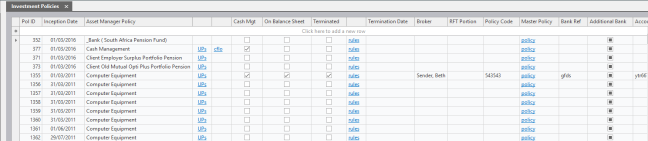
To add a new Investment Policy, select the row “Click here to add a new row.”
Complete the relevant fields.

Take special note of the following fields:
Inception date: This date must be prior to the first transaction date.
Asset Manager Policy: This is the new policy you wish to link.
Cash Mgt: Is this a Cash Management Portfolio? If so, tick the relevant block.
On Balance Sheet: (Insured Schemes Only) Should you wish to reflect Fund assets on the Company Balance Sheet, tick the block.
Broker: Select the relevant Broker name from the drop-down option. The Broker name will only be available if the record has been added to the People table via the People menu.
The other fields are not usually utilised.
Press the “Update” button and the “Save” Icon.
Click on the  button at the bottom of the screen to complete the banking details for all lines loaded.
Banking details: Complete the relevant banking details, taking special note of the “Bank” and Bank Configuration fields below.
Note – the Nedinform fields are generally not used and would be populated by the System Administrator.


Bank: Select the bank from the dropdown option of all banks preloaded.
Should the bank you require not be listed, please contact your Super User who is able to add to this list.

Bank Configuration: This field is ONLY populated on the _Bank (Parent Name)” policy. Select from a pre-loaded list that matches the banking system you utilise.
