Asset Based fees
Asset Based Fees
by
EBSPHERE

Introduction
This functionality allows you to run a batch, once a month, either for a single Client, or for the Parent, based on the Fund Credit holding at person/member/client level.
Investment Fee Scale / Flat Rate / Fixed Deduction Setup
To create a new Investment Fee Type go to Administration → Financial Settings → Investment Expense Settings → Investment Fees:

A screen with 2 tabs will open. Make sure you are on the Fee Scale Tab:

Any previously created scales will appear on this screen:

Double clicking on the view scale hyperlink, will populate a section at the bottom of the screen, which displays the scale for that levy:

As can be seen in the example above, you can create an scale based on an asset range, an asset fee% and a fixed amount.
To create a NEW Scale, double click on the “Click here to add a new row” field, on the TOP section of the screen:

Populate the fields as below:

Investment Scale ID: do not populate, this will be auto-created by Everest
Scale Name: this is a free form text field – populate the name of the new scale, making sure the name is UNIQUE.
Fund Credit Calc Type: there are 3 options to choose from:
- Weighted – this is a money weighted calculation that takes into account transactions for the period selected when running the batch to calculate the fees
- Open – this will use the Fund Credit value at the Open Date selected on the batch to calculate the fees
- Closing – this will use the Fund Credit value at the Closing Date selected on the batch to calculate the fees
Accounts Description: this is the ledger account you want to deduct fees in respect of
In the example image below, the new fee would be for Fund Levies, using the Opening Fund Credit Value.

Select “Update” once all fields have been populated.
To populate the scale to be applied, double click the view scale hyperlink:

Populate the applicable scale in the section that opens at the bottom of the screen:

Note about the Fee Fixed Amount field – this is an ANNUAL amount. i.e. if 2 500.00 must be applied per month, then this field would be populated with an amount of 30 000.00.
Save the changes made:

Setting up the scale to be applied to members
Select the Investment Expense Tab:

Any previously created Investment Expenses will appear on the screen:
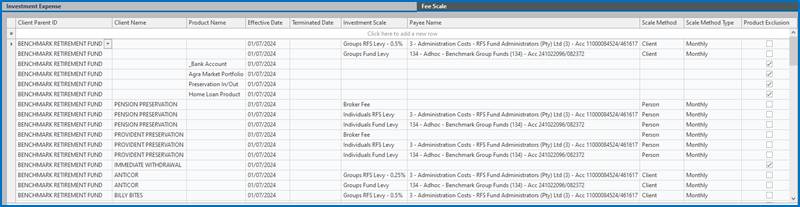
To create a NEW Investment Expense, double click on the “Click here to add a new row” field, on the TOP section of the screen:

A popup will open as below:

NB! When adding a new expense, make sure you understand if the fee must apply to ALL clients, specific clients, ALL products, specific products OR if the client/product must be excluded from the bulk monthly calculation.
Client Parent ID: this will automatically be the Parent that you are loading the fee on
Client Name: populate the client if the fee is ONLY applicable to that client, otherwise leave blank
Product Name: populate the product if the fee is ONLY applicable to that product, otherwise leave blank
Effective Date: the date from which the fee is applicable
Terminated Date: if the fee must stop calculating, populate this field with the day AFTER the last calculation must be performed. e.g. if the fee must be calculated at 31/12/2024, but must not calculate for 31/01/2025, make the termination date 01/01/2025.
Investment Scale: populate from the available list of investment scales (created on the Fee Scale tab earlier)
Payee Name: who must the fee be paid to?
Scale Method: there are 3 options to choose from:
- Client – this will ADD the TOTAL fund credit for the whole client, and apply the fee scale to that total
- Member – this will use the total Fund Credit value of that member only
- Person – this will use the TOTAL Fund Credit value for a person record. i.e. any members who are linked together on the database. e.g. you have a member on a Preservation Pension Fund AND a Preservation Provident Fund – using this method will add the Fund Credit for both records (as long as the records are linked at person level – see batch later in the manual for how to link records), and apply the fee scale applicable to that TOTAL.
Scale Method Type: there are 2 options to choose from:
- Daily – this method will apply a daily weighted calculation
- Monthly – this method will calculate the fee based on the total at month end/opening (depending on what is selected on the Fee Scale created)
Product Exclusion: If this box is ticked, the fee will not calculate. This can apply to a whole client or a whole product.
Some examples are below to explain the different scenarios:
Apply fee to the whole Parent:

Exclude product from whole Parent- this will exclude the whole product from ALL fee calculations:

OVERRIDE fee at client level – If a fee is applied to a client, it will override ALL fees loaded at Parent level, and therefore you must load a fee, for that client, for ALL fees that must be applied to that client:

Exclude Client from fee calculation – this will exclude the whole client from ALL fee calculations:

Member Level Broker Fee Setup
To set up the Broker fees we first need to create the broker, and their applicable agents.
To create the Brokerage, go to People → Brokerage:

A screen will populate with all current Brokers loaded on the system:

To create a NEW Brokerage, double click on the “Click here to add a new row” field:

On the screen that opens, there are only 2 mandatory fields:

Brokerage Name: this is a free form text field
Administrator Bank: this is the Bank Account that the fees must be paid to. These bank accounts are created via Administration → Financial Settings → System Bank Accounts. Please refer to your supervisor if a new bank account needs to be loaded
Select “Update” and then Save the screen change.
To create the Broker Agent, go to People → People Brokerage:

On the screen that opens, there are only 2 mandatory fields:

Brokerage : populate with the brokerage that was created on the People → Brokerage screen
Contact Person: this is the Broker Agent. There must be a person record created for the agent via People → Search. On the Person record created, you must tick the Broker Consultant field in the Designation section of the person record:
Administrator Bank: This would only be populated if the bank account being paid to is different to the Brokerage.

Once these screens are populated, you now need to load the broker fee on the member record.
Search for the applicable member, select the “info” button, and then go to the tab “Member Investment Fee Scale:



This screen is made up of two parts:

The top section holds the fee to be applied, while the bottom section holds the broker, and broker agent, where the fee must be paid to.
You can update the fee section independently of the broker section and vice versa. e.g. if the broker changes his fee from 0.25% to 0.35%, you terminate the existing row and then add a new row in the fee section only.
To add a new fee to a member, double click on the “Click here to add a new row” field in the top section of the screen:

On the screen that opens, populate the relevant fields:

Effective Date : the date from which the fee must apply
Investment Scale: Select the scale to be applied (created earlier in the manual). To note, this screen can be used to override, at member level, any other fee applied via the Investment Fees Screen. In this case, we are adding a broker fee.
Fee Percentage: this is the fee% to be applied
Asset Start & numAsset End: you can create a scale of fees to apply to this expense
Fee Fixed Amount: If the fee is a fixed fee, instead of a %, populate this fee
Terminated Date: if the fee must stop calculating, populate this field with the day AFTER the last calculation must be performed. e.g. if the fee must be calculated at 31/12/2024, but must not calculate for 31/01/2025, make the termination date 01/01/2025.
Select “Update” and then Save the screen change.
To add the broker applicable to a member, double click on the “Click here to add a new row” field in the bottom section of the screen:

On the screen that opens, populate the relevant fields:

Investment Scale: Select the scale to be applied (created earlier in the manual)
Broker: Select the Broker/Broker Agent combination from the available drop down (created earlier in the manual)
Effective Date : the date from which the fee must apply
Select “Update” and then Save the screen change.
Batch to run Asset Based Fees
Select the batch “Parent Investment Product Expenses”.

It is VITAL that the dates are populated correctly, based on the way the asset levies must be applied AND that a Test Run is done before running a Live run.
Client: populate this field if the fees must be calculated for that client ONLY, otherwise leave it blank
Effective Date: this is the date that the disinvestment will be done on Everest. The Unit Prices must be updated and linked BEFORE this batch is run.
From/Open Date : the date from which the fee must apply. If your fee uses the fund credit at the beginning of the month, you populate this field with the first day of that month.
To/Close Date : the date to which the fee must apply. If your fee uses the fund credit at the end of the month, you populate this field with the last day of that month.
Batch Ref: Do not change
Client Parent: The Parent the batch is being run on
LIVE/TEST: If Test is selected, a report will be produced that reflects all of the fees that are calculated. The test run can be run multiple times. Once you have checked, and are happy with the test run, you can run the Live batch. Live will write up the creditor entries for the payments to be made, as well as the disinvestment for the fees.
“Save” and “Execute” the batch. An excel report will be generated. Please note that the batch does take a while to run, depending on the size of the membership.
The report will produce a Summary tab, an Accounts Summary tab, and a tab PER CLIENT if the batch is run for the full Parent:

Summary: This tab provides a high-level breakdown of what fees are being applied to the Parent, exclusions, payee info, and totals per product:




Accounts Summary: This tab provides a high-level breakdown of what accounting transactions are being applied to the Parent, payee info, and switches per product and policy:


Per Client: This tab provides a by member, by product, by fee breakdown:


A note about members with multiple products and money types. Everest will ratio the applicable fee across the products and money types, so the member statement will have multiple rows reflecting each transaction.
An example member statement after the LIVE run is performed (transactions in black are unpriced and will affect your closing fund credit value):

Batch to link person records
Where a member has multiple records and the Fund Credit must be combined for the asset-based fee calculation, use batch “Person Record Allocation to Existing Member”.

Client: populate with the client that one of the member records belongs to
Member: populate with the member on that client
To Member : populate with the SYSTEM NUMBER of the member you want to link this record to
Once the batch is run, you can do a People Search for the records, select the “Fund Information” tab and you will see the 2 records, on the 2 different clients.

These records will now have their Share of Fund COMBINED for the purposes of the fee calculations, as long as the “person” Scale Method is applied to that fee on the Investment Expenses screen.
Copyright and Disclaimer
DISCLAIMER
Please note, whilst care is taken to illustrate numerous scenarios, it is impossible to detail all instances and therefore this document should merely serve as a guide for the purposes of demonstrating system functionality and conducting employee training.
In accordance with the above paragraph, this training manual is published and distributed on the basis that EBSphere (Pty) Ltd is not responsible/accountable for any actions taken by users of information contained in this training manual nor for any error in or omission from this manual.
EBSphere (Pty) Ltd does not accept any responsibility whatsoever for a misrepresentation performed by any person in respect of claims, losses or damage or any other matter, either direct or consequential arising out of or in relation to the use and reliance, whether wholly or partially, upon any information contained or products referred to in this manual.
Further, the contents of this training manual are subject to change without any notice and further highlight the need for this training manual to serve only as a guide.
COPYRIGHT
This documentation and the software described in it is the exclusive property of EBSphere (Pty) Ltd. This manual or the software may not be copied in whole or part, without the express written consent of EBSphere (Pty) Ltd. Under the law, copying includes translating into another language or format.
EBSphere (Pty) Limited
P.O. Box 785803
Sandton
2146